
MS Word Gantt Chart Template With Progress Tracking
Creating and Using Gantt Charts with Progress Tracking in Microsoft Word
Microsoft Word, primarily known for document creation, might not be the first tool that comes to mind for project management. However, leveraging its capabilities with pre-designed Gantt chart templates can be surprisingly effective for smaller projects or when dedicated project management software isn’t necessary. This guide will walk you through creating a Gantt chart in Word and integrating progress tracking to monitor your project’s timeline and milestones.
Why Use a Word-Based Gantt Chart?
While dedicated project management tools offer robust features, Word Gantt charts offer several advantages:
- Accessibility: Most users are familiar with Microsoft Word, minimizing the learning curve.
- Cost-effective: No additional software purchase is required if you already have Word.
- Simplicity: Ideal for smaller, less complex projects where advanced features aren’t needed.
- Customization: Word allows for extensive customization of the chart’s appearance.
- Integration: Easy to embed the Gantt chart directly into project proposals, reports, and presentations.
Finding and Inserting a Gantt Chart Template
Microsoft Word offers a range of Gantt chart templates to get you started. Here’s how to find them:
- Open Microsoft Word.
- Click on “File” and then “New.”
- In the search bar, type “Gantt Chart” or “Project Timeline.”
- Browse the available templates and select one that suits your project’s complexity and aesthetic preferences.
- Click “Create” to open the template.
Customizing Your Gantt Chart Template
Once you’ve selected a template, you’ll need to tailor it to your specific project. This involves modifying the tasks, timelines, and other elements:
- Task Description: Replace the placeholder task descriptions with the actual tasks required for your project. Be specific and use action verbs.
- Start and End Dates: Adjust the start and end dates for each task to reflect your project timeline. Ensure the dates align with the overall project duration.
- Task Dependencies: Identify any dependencies between tasks. For example, one task might need to be completed before another can begin. Consider adding visual cues (arrows or connectors) to indicate dependencies.
- Resources: Assign resources (people or equipment) to each task to clarify responsibilities. Some templates may have a dedicated column for this.
- Chart Scale: Modify the chart scale (days, weeks, months) to suit the project’s timeframe. You might need to adjust the overall chart size and zoom level for better visibility.
- Formatting: Customize the chart’s appearance by changing colors, fonts, and cell borders to enhance readability and visual appeal.
Implementing Progress Tracking
Tracking progress is crucial for staying on schedule and identifying potential delays. Here’s how to incorporate progress tracking into your Word Gantt chart:
- Progress Column: Add a column to the table specifically for tracking task progress. You can label it “Progress,” “% Complete,” or something similar.
- Progress Indicators: Choose a method for visually representing progress. Common options include:
- Percentage Completion: Enter a numerical percentage (e.g., 25%, 50%, 75%, 100%) to indicate the percentage of the task completed.
- Status Labels: Use descriptive labels like “Not Started,” “In Progress,” “Completed,” or “Delayed.”
- Conditional Formatting: Apply conditional formatting to automatically change the cell color based on the progress status. For example, a cell could turn green for “Completed,” yellow for “In Progress,” and red for “Delayed.”
- Progress Bars: Utilize Word’s drawing tools to create progress bars within each task row. Manually adjust the length of the bar to visually represent the percentage complete.
- Regular Updates: Schedule regular updates to the Gantt chart to reflect the latest progress on each task. Consistent updates are essential for maintaining an accurate and useful project overview.
- Milestone Markers: Use distinct markers (shapes, colors, or symbols) to highlight key milestones in the project timeline. Milestones represent significant achievements and provide tangible goals.
Tips for Effective Gantt Chart Usage in Word
- Keep it Simple: Avoid overcomplicating the chart with too many details, especially for smaller projects.
- Regularly Review: Schedule regular meetings to review the Gantt chart and discuss progress, roadblocks, and necessary adjustments.
- Communication: Share the Gantt chart with all relevant stakeholders to ensure everyone is informed about the project’s timeline and progress.
- Save Frequently: Regularly save your Gantt chart to prevent data loss. Consider using version control to track changes.
- Explore Add-ins: If you need more advanced features, explore Word add-ins that provide enhanced Gantt chart functionality.
Limitations of Word Gantt Charts
While Word Gantt charts are useful for basic project management, they have limitations compared to dedicated software:
- Limited Collaboration: Collaboration features are limited compared to online project management tools.
- Manual Updates: Progress tracking and updates are primarily manual, which can be time-consuming.
- Lack of Automation: Word lacks the automation features found in dedicated software, such as automatic dependency updates and critical path analysis.
Conclusion
Creating a Gantt chart in Microsoft Word, especially with progress tracking, is a viable solution for managing smaller projects with limited resources. By leveraging Word’s templates and customization options, you can create a visual representation of your project timeline and track progress effectively. However, for larger, more complex projects requiring robust collaboration and automation, dedicated project management software remains the better choice.
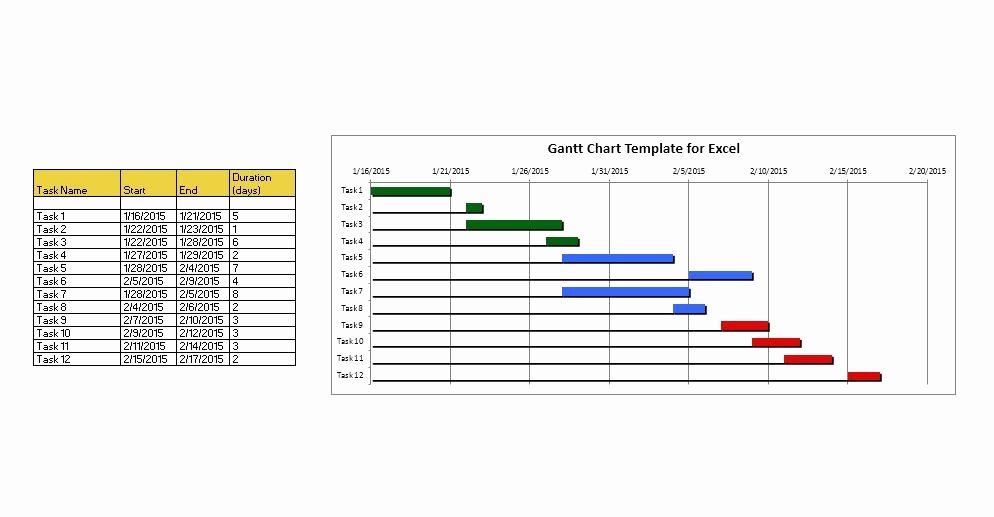 994×517 gantt chart template word markmeckler template design from markmeckler.net
 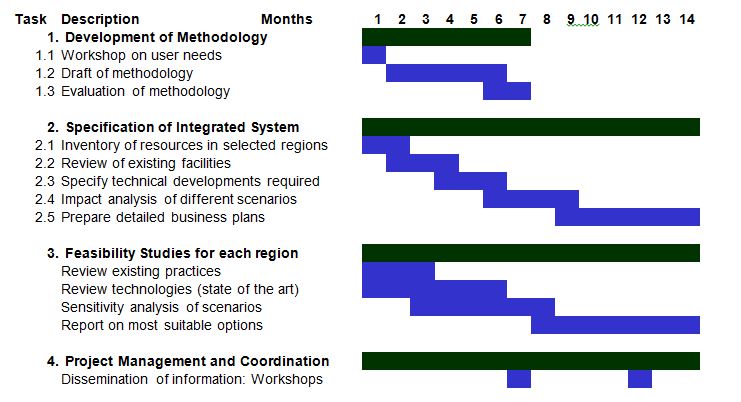 741×402 gantt chart template word word gantt chart template from myexceltemplates.com
  767×531 gantt chart word template sample gantt chart itil docs itil from www.itil-docs.com
  700×476 create gantt chart word edraw from www.edrawsoft.com
  1372×970 gantt chart word document template db excelcom from db-excel.com
 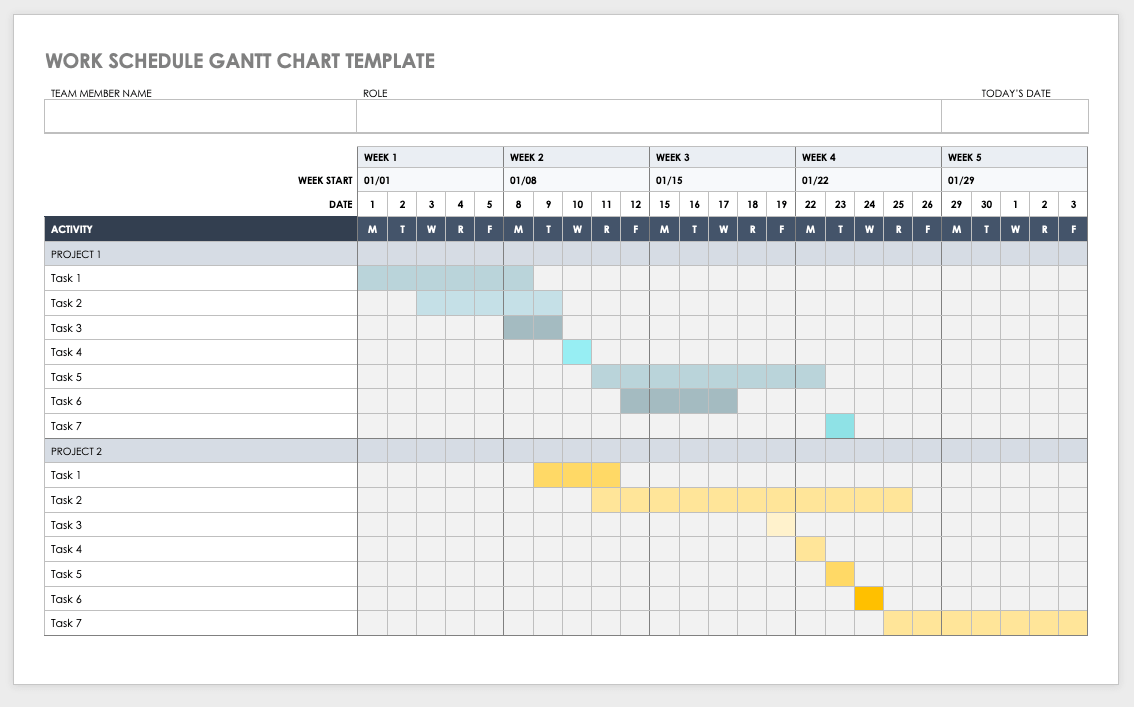 1134×707 gantt chart templates ms word smartshee from www.smartsheet.com
  1035×800 gantt chart template word template business from nationalgriefawarenessday.com
  1179×704 create gantt chart microsoft word smartsheet from www.smartsheet.com
 Thank you for visiting MS Word Gantt Chart Template With Progress Tracking. There are a lot of beautiful templates out there, but it can be easy to feel like a lot of the best cost a ridiculous amount of money, require special design. And if at this time you are looking for information and ideas regarding the MS Word Gantt Chart Template With Progress Tracking then, you are in the perfect place. Get this MS Word Gantt Chart Template With Progress Tracking for free here. We hope this post MS Word Gantt Chart Template With Progress Tracking inspired you and help you what you are looking for.
MS Word Gantt Chart Template With Progress Tracking was posted in December 17, 2025 at 3:01 pm. If you wanna have it as yours, please click the Pictures and you will go to click right mouse then Save Image As and Click Save and download the MS Word Gantt Chart Template With Progress Tracking Picture.. Don’t forget to share this picture with others via Facebook, Twitter, Pinterest or other social medias! we do hope you'll get inspired by SampleTemplates123... Thanks again! If you have any DMCA issues on this post, please contact us!