
MS Word Gantt Chart Template No Cost
MS Word Gantt Chart Templates: A Free Project Management Tool
Project management often feels like navigating a complex maze. Keeping track of tasks, deadlines, and dependencies can be daunting, especially for smaller teams or individuals without access to dedicated project management software. Fortunately, Microsoft Word offers a simple and often overlooked solution: Gantt chart templates. These templates provide a no-cost alternative to expensive software, allowing you to visualize project timelines and manage tasks effectively.
Why Use a Gantt Chart?
A Gantt chart is a visual project management tool that displays tasks or activities against time. It provides a clear overview of the project schedule, showing when each task starts, when it ends, and how tasks overlap. Using a Gantt chart offers several benefits:
- Visual Clarity: Gantt charts offer a visual representation of your project, making it easy to understand the timeline and dependencies at a glance.
- Improved Planning: By mapping out tasks and their durations, you can identify potential bottlenecks and resource constraints early on.
- Enhanced Communication: Gantt charts facilitate communication among team members and stakeholders, ensuring everyone is aware of the project’s progress and deadlines.
- Effective Task Management: You can easily track the progress of individual tasks and identify any delays.
- Simplified Dependency Tracking: Gantt charts highlight the relationships between tasks, allowing you to see which tasks depend on others and manage dependencies effectively.
Finding Free Gantt Chart Templates in MS Word
Microsoft Word provides several free Gantt chart templates directly within the application. To access them:
- Open Microsoft Word.
- Click on “File” and then “New.”
- In the search bar, type “Gantt chart” or “project timeline.”
- Browse through the available templates and choose one that suits your project’s needs.
Alternatively, many websites offer free Word-compatible Gantt chart templates. Search for “free Gantt chart template Word” on Google or your preferred search engine. Be cautious when downloading from external websites and ensure the source is reputable to avoid malware or viruses.
Customizing Your Gantt Chart Template
The beauty of using a Word-based Gantt chart template lies in its customizability. You can easily adapt the template to fit the specific requirements of your project. Here’s how:
- Adding and Editing Tasks: Add rows to the table to include all the necessary tasks. Edit the task names to accurately reflect your project’s activities.
- Adjusting Start and End Dates: Modify the start and end dates for each task to reflect the actual project timeline.
- Modifying Task Durations: Adjust the length of the bars representing each task to indicate the estimated duration.
- Adding Dependencies: Use arrows or other visual cues to indicate dependencies between tasks. You can manually draw these in or use Word’s shapes feature.
- Adding Milestones: Mark significant milestones with specific symbols or colors to highlight key achievements.
- Assigning Resources: Add a column to assign resources (team members) to each task.
- Tracking Progress: As tasks are completed, update the chart to reflect the actual progress. You can shade or color-code the task bars to indicate completion status.
- Adjusting the Time Scale: Modify the time scale (days, weeks, months) to suit the overall duration of your project.
Tips for Effective Gantt Chart Use
While using a Gantt chart template in Word is relatively straightforward, here are some tips for maximizing its effectiveness:
- Keep it Simple: Avoid overcrowding the chart with too much information. Focus on the essential tasks and dependencies.
- Regularly Update: Keep the chart up-to-date to accurately reflect the project’s progress. Review and adjust the timeline as needed.
- Communicate Changes: Inform team members and stakeholders of any changes to the Gantt chart.
- Break Down Large Tasks: Divide large, complex tasks into smaller, more manageable subtasks.
- Use Color-Coding: Use color-coding to visually represent different task statuses, priorities, or resource assignments.
- Consider Using Conditional Formatting: Word’s conditional formatting features can be used to automatically highlight tasks based on their status or deadlines.
Limitations of Word-Based Gantt Charts
While Word-based Gantt charts offer a free and accessible solution, they have limitations compared to dedicated project management software:
- Limited Collaboration Features: Real-time collaboration can be challenging as multiple users cannot simultaneously edit the same document without version control issues.
- Lack of Automation: Updates and dependency management are manual processes, which can be time-consuming.
- Limited Reporting Capabilities: Generating comprehensive reports on project progress is difficult.
- No Task Reminders: Word does not offer built-in task reminders or notifications.
Conclusion
MS Word Gantt chart templates provide a valuable, no-cost solution for basic project planning and task management. They are particularly useful for individuals, small teams, or projects with limited budgets. While they may not offer the advanced features of dedicated project management software, they provide a simple and effective way to visualize project timelines, track tasks, and communicate progress. By understanding the benefits and limitations of Word-based Gantt charts, you can make informed decisions about whether they are the right tool for your project’s needs.
 2339×1654 gantt chart template word markmeckler template design from markmeckler.net
  1056×816 gantt chart template word gantt chart word document template from www.heritagechristiancollege.com
  1045×582 gantt chart template word simple excel gantt chart template from www.heritagechristiancollege.com
  700×476 create gantt chart word edraw from www.edrawsoft.com
 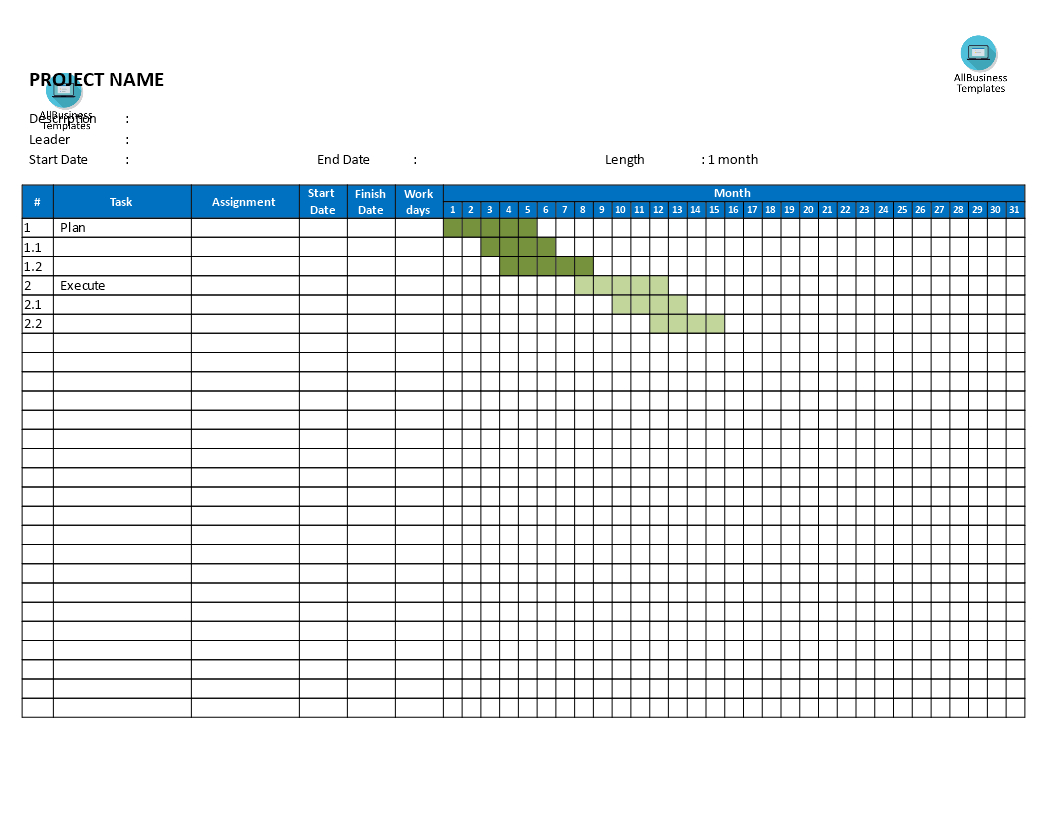 1056×816 gantt chart word document template db excelcom from db-excel.com
  1280×835 gantt chart template word heritagechristiancollege from www.heritagechristiancollege.com
  1366×901 gantt chart templates ms word smartshee from www.smartsheet.com
 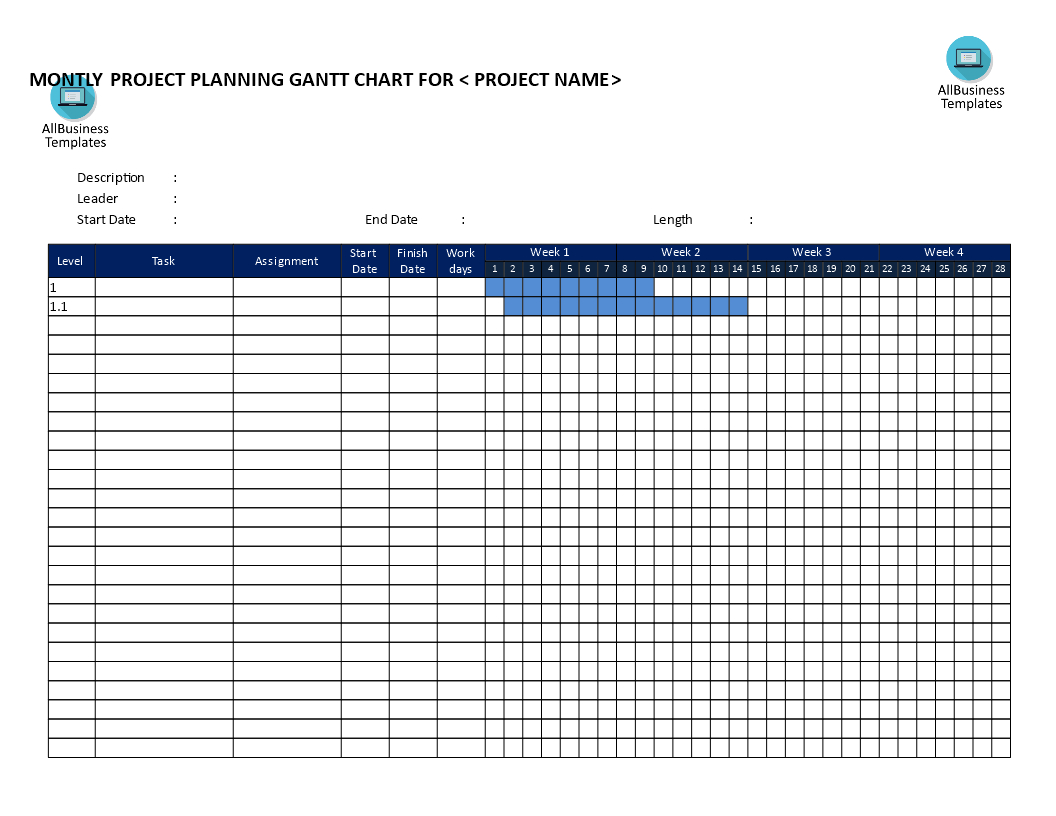 1056×816 gantt chart template microsoft word db excelcom from db-excel.com
  1035×800 gantt chart template word template business from nationalgriefawarenessday.com
  1292×732 gantt chart template word template resume examples from www.contrapositionmagazine.com
 Thank you for visiting MS Word Gantt Chart Template No Cost. There are a lot of beautiful templates out there, but it can be easy to feel like a lot of the best cost a ridiculous amount of money, require special design. And if at this time you are looking for information and ideas regarding the MS Word Gantt Chart Template No Cost then, you are in the perfect place. Get this MS Word Gantt Chart Template No Cost for free here. We hope this post MS Word Gantt Chart Template No Cost inspired you and help you what you are looking for.
MS Word Gantt Chart Template No Cost was posted in December 19, 2025 at 5:59 pm. If you wanna have it as yours, please click the Pictures and you will go to click right mouse then Save Image As and Click Save and download the MS Word Gantt Chart Template No Cost Picture.. Don’t forget to share this picture with others via Facebook, Twitter, Pinterest or other social medias! we do hope you'll get inspired by SampleTemplates123... Thanks again! If you have any DMCA issues on this post, please contact us!