
Downloadable Gantt Chart Template In Excel Format
Unlock Project Success with a Free Excel Gantt Chart Template
Project management can feel like juggling flaming torches while riding a unicycle – complex, demanding, and prone to spectacular failure if you lose focus. Thankfully, you don’t have to reinvent the wheel (or the unicycle!). A well-structured Gantt chart can be your trusty sidekick, helping you visualize, organize, and manage projects of any size and complexity. And the best part? You don’t need fancy software. A simple, customizable Gantt chart template in Excel can be a game-changer.
Why Choose an Excel Gantt Chart Template?
In a world overflowing with sophisticated project management software, why opt for a seemingly basic Excel template? The answer lies in its simplicity, accessibility, and customizability. Here’s a breakdown of the key advantages:
- Familiarity and Accessibility: Excel is practically ubiquitous. Most people are already familiar with its interface and basic functionalities. This means a lower learning curve and faster adoption for you and your team. No need to invest in expensive software licenses or undergo extensive training sessions.
- Cost-Effective Solution: Let’s face it, project management software can be expensive, especially for small businesses or individual projects. An Excel Gantt chart template offers a free (or very low-cost) alternative, allowing you to allocate your budget to other critical project aspects.
- Customization at Your Fingertips: Unlike proprietary software, Excel templates are highly customizable. You can easily tailor the template to fit your specific project needs, adding or removing columns, adjusting formatting, and incorporating formulas to automate calculations. This flexibility ensures that the Gantt chart reflects the unique requirements of your project.
- Collaboration Made Easy: Sharing and collaborating on an Excel file is simple. You can easily email the file to team members, store it on a shared drive, or use cloud storage services like Google Drive or OneDrive for real-time collaboration.
- Offline Access: Unlike web-based project management tools, you can access and edit your Excel Gantt chart even without an internet connection. This is particularly useful for teams working in remote locations or where internet access is unreliable.
- Simple Reporting and Visualization: Excel provides powerful charting tools that can be used to generate insightful reports and visualizations based on your Gantt chart data. You can easily create charts to track project progress, identify potential bottlenecks, and communicate project status to stakeholders.
Key Elements of a Downloadable Gantt Chart Template
A good Excel Gantt chart template should include the following essential elements:
- Task List: A clear and concise list of all tasks required to complete the project. Each task should be described with sufficient detail to avoid ambiguity.
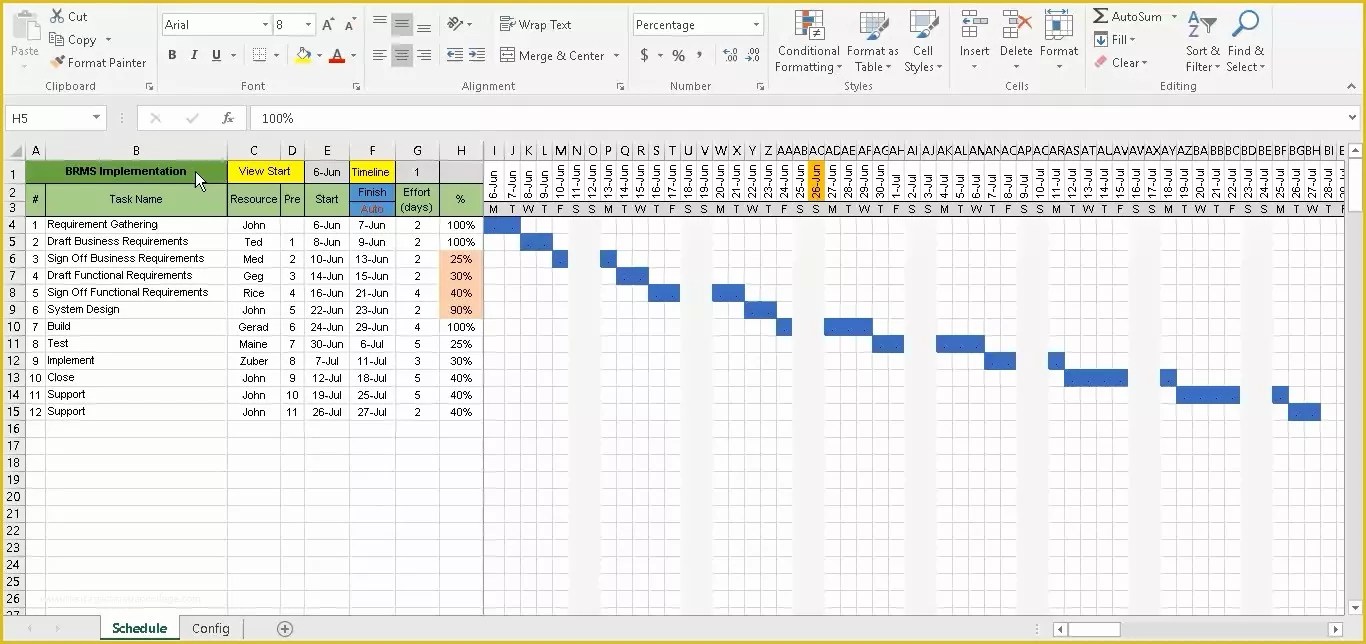
- Start and End Dates: The planned start and end dates for each task. These dates determine the duration of the task and its position on the Gantt chart.
- Duration: The estimated time required to complete each task, usually expressed in days, weeks, or months.
- Dependencies: The relationships between tasks, indicating which tasks must be completed before others can begin. These dependencies are crucial for identifying the critical path.
- Assignee: The person or team responsible for completing each task. Assigning responsibility ensures accountability and helps to avoid confusion.
- Progress: A visual representation of the progress made on each task, typically expressed as a percentage. This allows you to quickly assess the overall project status.
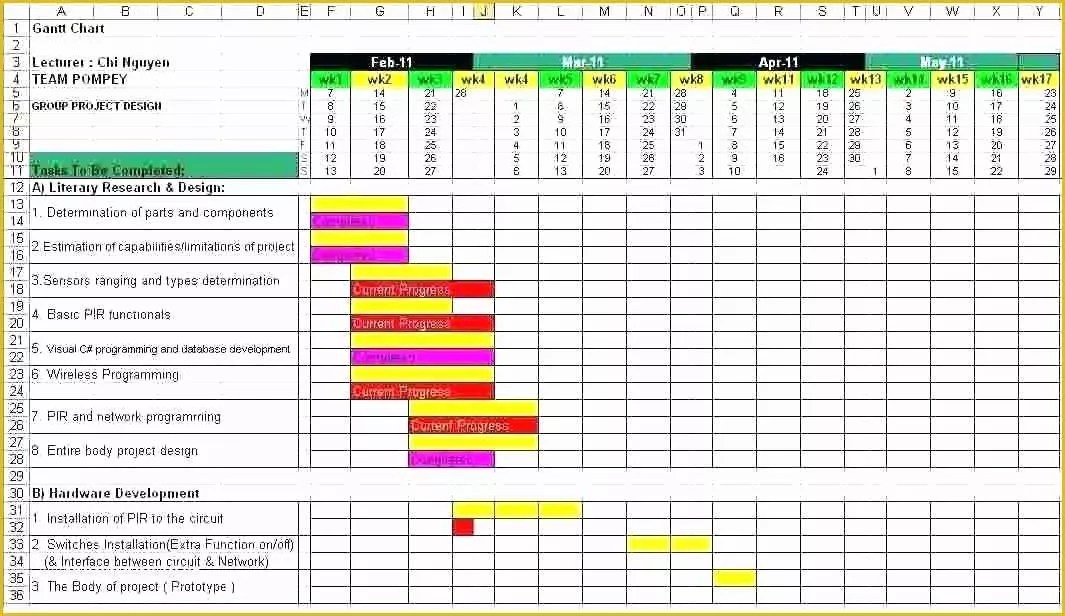
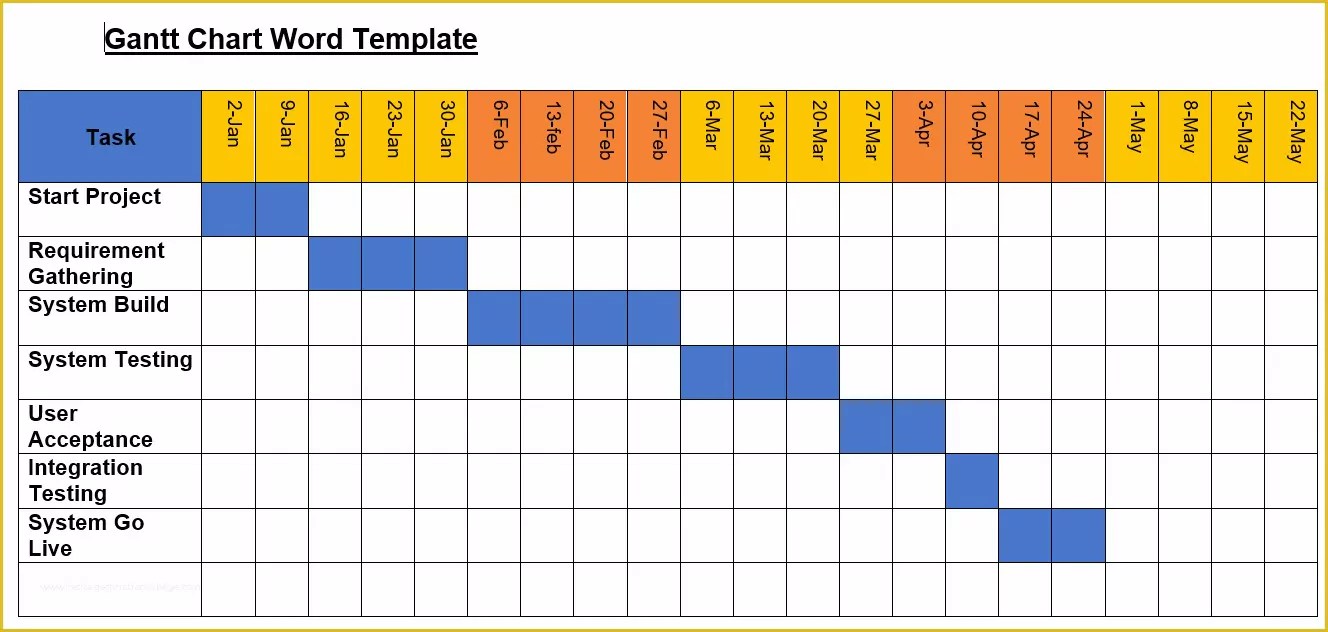
- Gantt Chart Visualization: A graphical representation of the project schedule, showing the tasks, their durations, and their dependencies over time. This is the core element of the Gantt chart and provides a visual overview of the project plan.
- Critical Path: A highlighted path through the Gantt chart that represents the longest sequence of tasks that must be completed on time to ensure the project finishes on schedule. Identifying the critical path is essential for managing project risks and preventing delays.
How to Use Your Downloaded Excel Gantt Chart Template
Once you’ve downloaded your Gantt chart template, follow these steps to get started:
- Open the Template: Open the Excel file and familiarize yourself with the layout and features.
- Enter Project Information: Fill in the project name, start date, and other relevant details.
- Populate the Task List: Add all the tasks required to complete the project to the task list. Be specific and include enough detail for each task.
- Set Start and End Dates: Determine the start and end dates for each task. Consider dependencies and resource availability when setting these dates.
- Specify Durations: Estimate the duration of each task. Be realistic and consider potential challenges or delays.
- Define Dependencies: Identify the dependencies between tasks. Use the appropriate column or cell to specify which tasks must be completed before others can begin.
- Assign Resources: Assign each task to a specific person or team. This ensures accountability and helps to avoid confusion.
- Track Progress: Regularly update the progress of each task. Use the progress column to indicate the percentage of work completed.
- Analyze the Gantt Chart: Use the Gantt chart visualization to monitor project progress, identify potential bottlenecks, and track the critical path.
- Adjust as Needed: Be prepared to adjust the Gantt chart as the project progresses. Unexpected events or changes in priorities may require you to revise the schedule.
Tips for Maximizing Your Excel Gantt Chart
Here are some tips to help you get the most out of your Excel Gantt chart template:
- Use Conditional Formatting: Use conditional formatting to highlight tasks that are overdue, nearing completion, or on the critical path.
- Incorporate Formulas: Use Excel formulas to automate calculations, such as calculating task durations or tracking project progress.
- Utilize Data Validation: Use data validation to create drop-down lists for task assignments or progress indicators. This ensures data consistency and reduces errors.
- Break Down Complex Tasks: If a task is too complex, break it down into smaller, more manageable sub-tasks.
- Regularly Update the Chart: Make it a habit to update the Gantt chart regularly to reflect the current project status.
- Communicate Effectively: Share the Gantt chart with your team and stakeholders to ensure everyone is informed about project progress and any potential issues.
- Explore Advanced Features: Excel offers a variety of advanced features, such as pivot tables and macros, that can further enhance your Gantt chart.
Download Your Free Template Today!
Ready to take control of your projects? Download your free Excel Gantt chart template today and start planning for success. With a little customization and effort, you can transform a simple spreadsheet into a powerful project management tool.
[Link to download the Excel Gantt Chart Template]
By leveraging the power of a downloadable Excel Gantt chart template, you can streamline your project management process, improve team collaboration, and ultimately achieve your project goals more effectively. So, ditch the complexity and embrace the simplicity – your project (and your sanity) will thank you for it!
 1024×768 gantt chart excel template db excelcom from db-excel.com
  1652×1277 excel gantt chart template ms excel gantt chart template from db-excel.com
 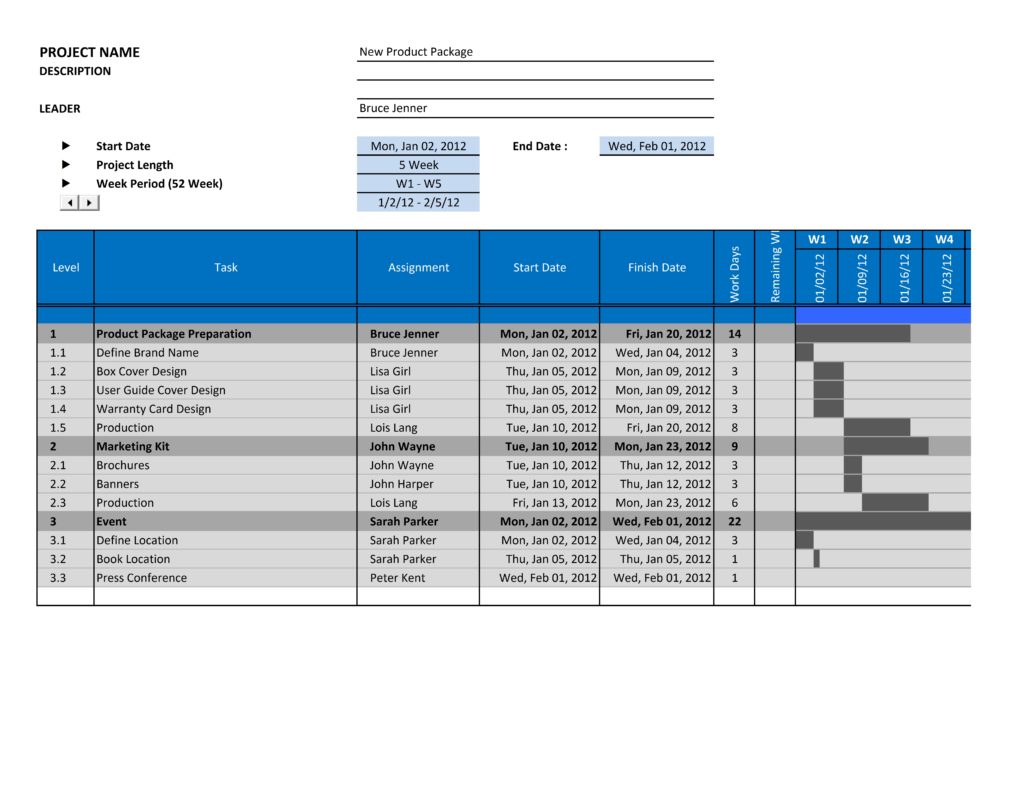 1024×791 excel sheet gantt chart template db excelcom from db-excel.com
 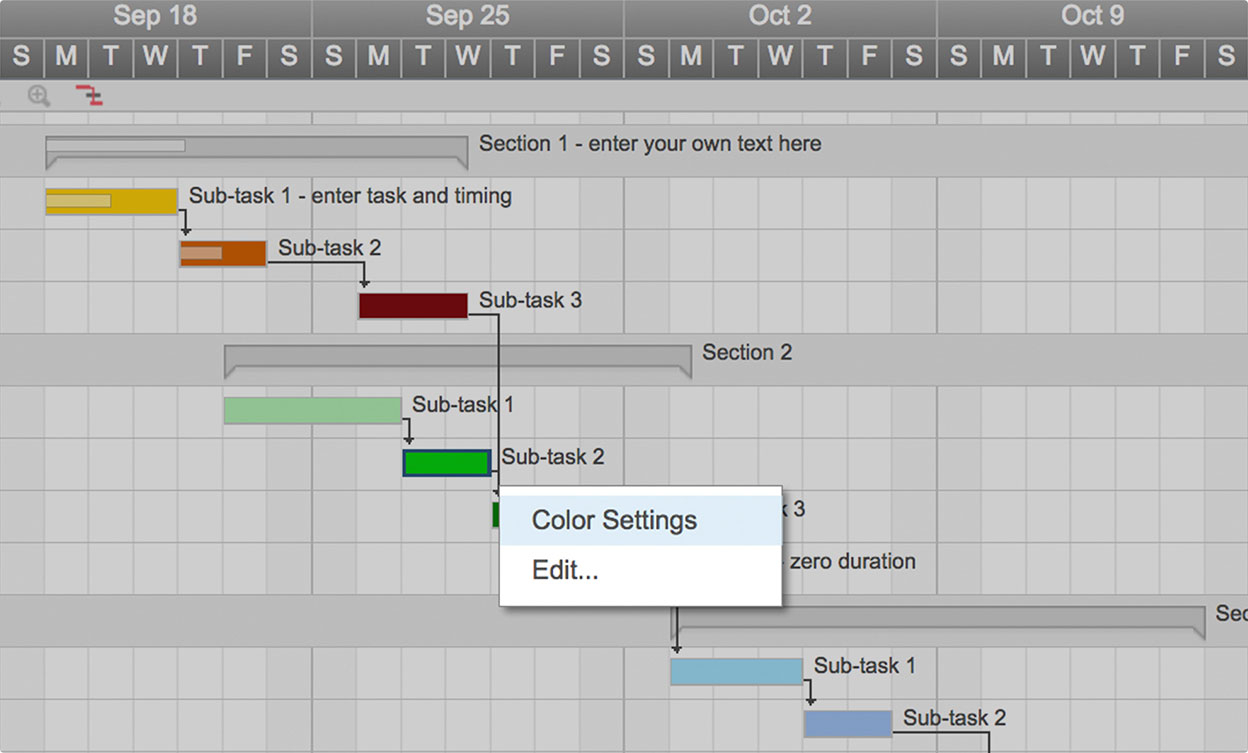 1248×753 gantt chart excel template gantt chart from db-excel.com
  1024×791 gantt chart spreadsheet excel templates db excelcom from db-excel.com
 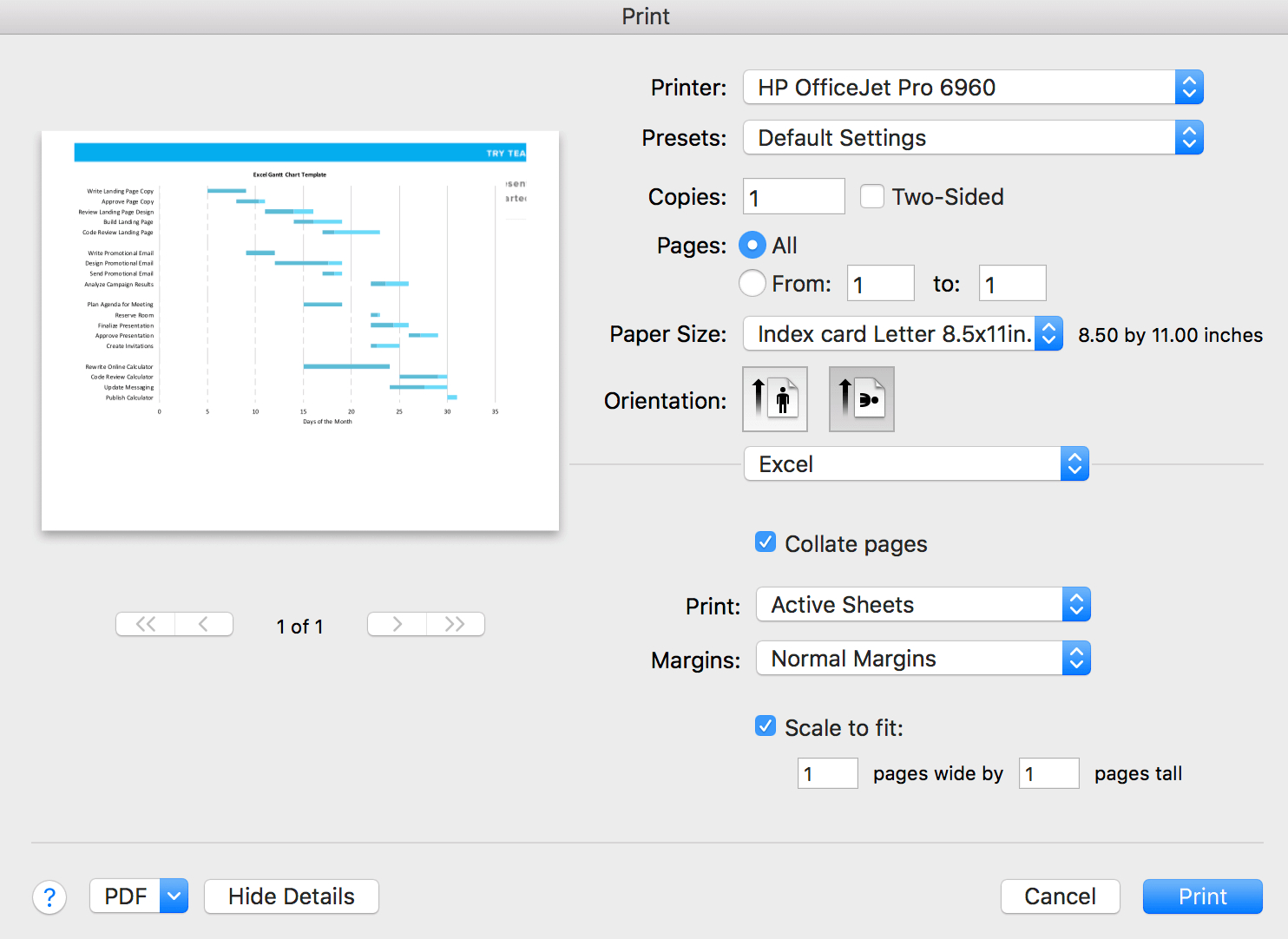 1484×1082 gantt chart excel template teamgantt excel from db-excel.com
  0 x 0 gantt chart excel template teamgantt from www.teamgantt.com
 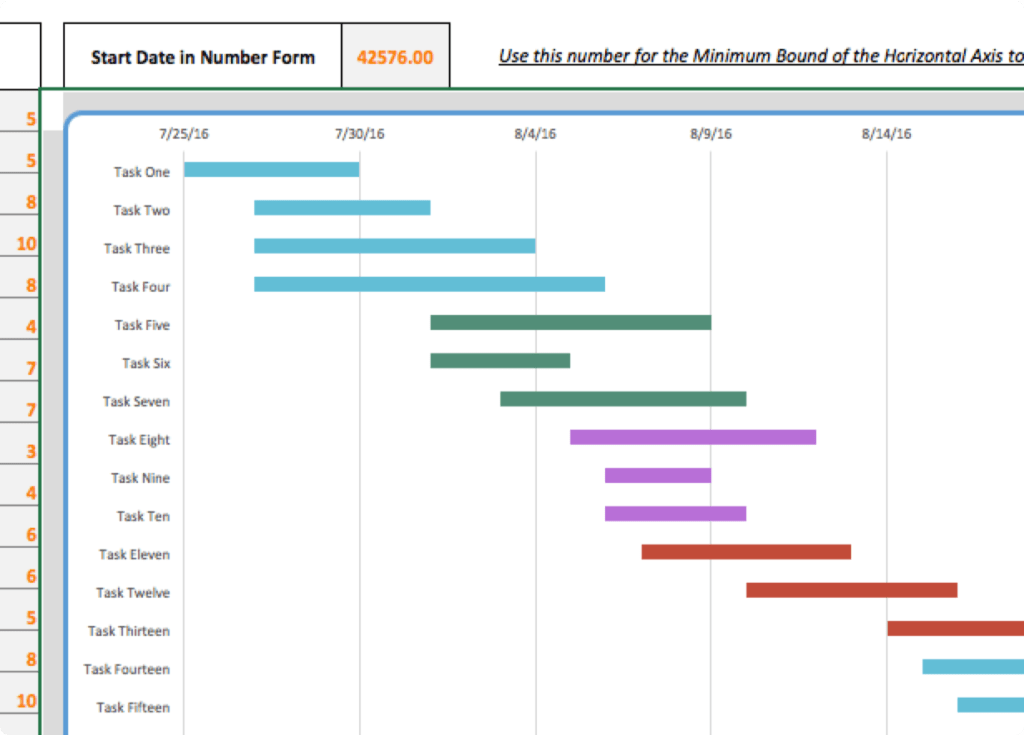 1024×735 excel spreadsheet gantt chart template db excelcom from db-excel.com
  1366×644 excel gantt chart template heritagechristiancollege from www.heritagechristiancollege.com
  1065×616 microsoft excel gantt chart template gantt chart from www.heritagechristiancollege.com
  1152×720 excel spreadsheet gantt chart template spreadsheet templates from excelxo.com
  1328×632 excel gantt chart template gantt chart excel from www.heritagechristiancollege.com
  2560×1452 gantt chart templates excel templatearchive from templatearchive.com
  1248×680 gantt chart template excel spreadshee gantt from db-excel.com
  1024×565 gantt chart spreadsheet excel templates excelxocom from excelxo.com
  1162×1519 microsoft excel gantt chart template excel templates excel templates from www.exceltemplate123.us
 Thank you for visiting Downloadable Gantt Chart Template In Excel Format. There are a lot of beautiful templates out there, but it can be easy to feel like a lot of the best cost a ridiculous amount of money, require special design. And if at this time you are looking for information and ideas regarding the Downloadable Gantt Chart Template In Excel Format then, you are in the perfect place. Get this Downloadable Gantt Chart Template In Excel Format for free here. We hope this post Downloadable Gantt Chart Template In Excel Format inspired you and help you what you are looking for.
Downloadable Gantt Chart Template In Excel Format was posted in December 14, 2025 at 2:36 pm. If you wanna have it as yours, please click the Pictures and you will go to click right mouse then Save Image As and Click Save and download the Downloadable Gantt Chart Template In Excel Format Picture.. Don’t forget to share this picture with others via Facebook, Twitter, Pinterest or other social medias! we do hope you'll get inspired by SampleTemplates123... Thanks again! If you have any DMCA issues on this post, please contact us!