
Free Gantt Chart Template For Google Sheets
Free Gantt Chart Template for Google Sheets
Unlock project management success with a free and customizable Gantt chart template for Google Sheets.
What is a Gantt Chart and Why Use One?
A Gantt chart is a visual project management tool that illustrates a project schedule. It displays tasks, their durations, start and end dates, and dependencies in a horizontal bar chart format. The horizontal axis represents time, and each task is represented by a bar that spans its duration.
Using a Gantt chart offers several significant advantages:
- Visualizing Project Timeline: Provides a clear overview of the project schedule, making it easy to understand the sequence and duration of tasks.
- Improved Planning and Scheduling: Helps in breaking down complex projects into manageable tasks and defining realistic deadlines.
- Resource Allocation: Allows for efficient allocation of resources by identifying potential bottlenecks and optimizing task scheduling.
- Progress Tracking: Enables monitoring project progress by comparing planned timelines with actual progress, highlighting any deviations from the schedule.
- Enhanced Communication and Collaboration: Facilitates clear communication among team members by providing a shared understanding of the project plan and progress.
- Dependency Management: Illustrates task dependencies, ensuring that tasks are completed in the correct order and minimizing delays.
- Risk Identification: Helps in identifying potential risks and delays by highlighting critical path activities and potential bottlenecks.
In short, a Gantt chart is a powerful tool for planning, organizing, and managing projects effectively, regardless of their size or complexity.
Why Choose a Google Sheets Gantt Chart Template?
While dedicated project management software offers advanced features, a Gantt chart template for Google Sheets presents a compelling alternative, especially for smaller projects or teams with limited budgets. Here’s why:
- Cost-Effective: Google Sheets is a free, web-based spreadsheet application, eliminating the need for expensive software licenses.
- Accessibility: Accessible from any device with an internet connection, allowing team members to collaborate and track progress from anywhere.
- Collaboration: Google Sheets allows for real-time collaboration, enabling multiple users to work on the chart simultaneously.
- Customization: Templates can be easily customized to fit the specific needs of your project, including adding custom fields, milestones, and dependencies.
- Ease of Use: Most users are familiar with spreadsheet software, making it easy to learn and use a Google Sheets Gantt chart template.
- Integration: Integrates seamlessly with other Google Workspace applications, such as Google Calendar and Google Docs.
- No Installation Required: Being a web-based application, Google Sheets eliminates the need for software installations or updates.
For many projects, the simplicity and accessibility of a Google Sheets Gantt chart template outweigh the advanced features of dedicated project management software. It’s a great starting point for anyone new to project management or those who need a flexible and collaborative tool.
Key Features of a Good Free Gantt Chart Template
When selecting a free Gantt chart template for Google Sheets, consider these essential features:
- Task List: A clear and organized task list with columns for task name, description, start date, end date, duration, and assigned team member.
- Timeline Visualization: A visually appealing timeline that clearly represents the duration of each task and the overall project schedule.
- Dependency Tracking: The ability to link tasks together to represent dependencies, ensuring that tasks are completed in the correct order.
- Progress Tracking: A mechanism for tracking the progress of each task, typically through a percentage completion indicator.
- Milestones: The ability to mark significant milestones in the project timeline.
- Resource Allocation: Columns or features that allow you to assign resources to tasks and track resource utilization.
- Customization Options: Flexibility to customize the template to fit the specific needs of your project, including adding custom fields and modifying the visual appearance.
- Conditional Formatting: Use of conditional formatting to visually highlight important information, such as overdue tasks or tasks nearing their deadline.
- Clear Instructions: Instructions or a guide on how to use the template effectively.
Finding and Using a Free Gantt Chart Template
Several resources offer free Gantt chart templates for Google Sheets:
- Google Sheets Template Gallery: Google Sheets has a built-in template gallery that often includes basic Gantt chart templates. Access it by opening Google Sheets and selecting “Template gallery.”
- Online Search: Search online for “free Gantt chart template Google Sheets.” Numerous websites offer free templates for download or copying.
- Project Management Websites and Blogs: Many project management websites and blogs provide free templates as resources for their readers.
Once you’ve found a template, follow these steps to use it:
- Open the Template: Open the template in Google Sheets. You may need to make a copy of the template to your own Google Drive account.
- Familiarize Yourself with the Template: Review the different sections of the template and understand how it works. Read any instructions or guides that are provided.
- Populate the Task List: Enter your project tasks into the task list, including task names, descriptions, start dates, end dates, and assigned team members.
- Define Dependencies: If applicable, link tasks together to represent dependencies. The template may provide a specific column or method for defining dependencies.
- Track Progress: Update the progress of each task as it is completed. The template may use a percentage completion indicator or a status column.
- Customize as Needed: Customize the template to fit the specific needs of your project. This may involve adding custom fields, modifying the visual appearance, or adjusting formulas.
- Share and Collaborate: Share the Gantt chart with your team members and collaborate on project planning and progress tracking.
Tips for Effective Gantt Chart Use
To maximize the effectiveness of your Gantt chart, consider these tips:
- Keep it Simple: Avoid overcomplicating the chart with too many details. Focus on the essential tasks and milestones.
- Regularly Update: Update the chart regularly to reflect the current status of the project.
- Communicate Effectively: Use the chart to communicate project progress and any potential issues to your team members.
- Be Realistic: Set realistic deadlines and allocate sufficient time for each task.
- Involve the Team: Involve your team members in the planning and scheduling process to ensure that they are committed to the project.
- Monitor Dependencies: Carefully monitor task dependencies to ensure that tasks are completed in the correct order.
- Use Conditional Formatting: Use conditional formatting to visually highlight important information, such as overdue tasks or tasks nearing their deadline.
Conclusion
A free Gantt chart template for Google Sheets is a valuable tool for anyone looking to improve their project management skills. Its accessibility, collaboration features, and ease of use make it an excellent choice for small to medium-sized projects. By following the tips and guidelines outlined in this article, you can effectively utilize a Google Sheets Gantt chart template to plan, organize, and track your projects to successful completion.
 0 x 0 google sheets gantt chart template teamgantt from www.teamgantt.com
  2826×1372 gantt chart excel template google sheets compatible from spitmarket.com
  1786×1040 google sheet gantt chart template from instagantt.com
  1387×829 gantt chart google sheets edrawmax from www.edrawmax.com
 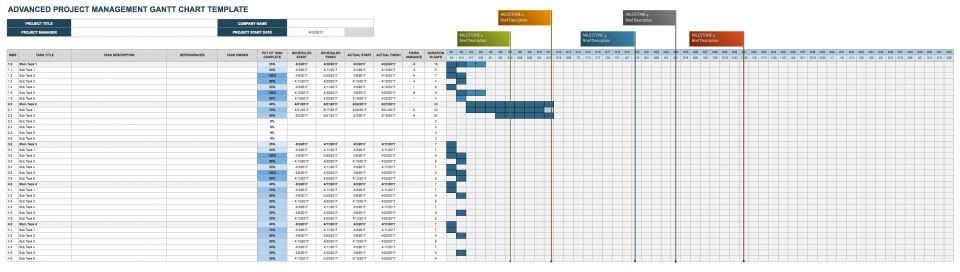 960×272 google sheets gantt chart templates smartsheet from www.smartsheet.com
  1300×781 gantt chart google sheets smartsheet from www.smartsheet.com
 Thank you for visiting Free Gantt Chart Template For Google Sheets. There are a lot of beautiful templates out there, but it can be easy to feel like a lot of the best cost a ridiculous amount of money, require special design. And if at this time you are looking for information and ideas regarding the Free Gantt Chart Template For Google Sheets then, you are in the perfect place. Get this Free Gantt Chart Template For Google Sheets for free here. We hope this post Free Gantt Chart Template For Google Sheets inspired you and help you what you are looking for.
Free Gantt Chart Template For Google Sheets was posted in January 20, 2026 at 12:56 pm. If you wanna have it as yours, please click the Pictures and you will go to click right mouse then Save Image As and Click Save and download the Free Gantt Chart Template For Google Sheets Picture.. Don’t forget to share this picture with others via Facebook, Twitter, Pinterest or other social medias! we do hope you'll get inspired by SampleTemplates123... Thanks again! If you have any DMCA issues on this post, please contact us!