
Automated Gantt Chart Excel Template With Macros
“`html
Automated Gantt Chart Excel Template with Macros
Project management often demands meticulous planning and tracking. Gantt charts, visual representations of project timelines, are invaluable tools for this purpose. While creating Gantt charts manually can be tedious, automating the process with an Excel template incorporating macros offers a significant boost in efficiency and accuracy.
What is an Automated Gantt Chart Template?
An automated Gantt chart template in Excel is a pre-designed spreadsheet with built-in functionalities to streamline the creation and management of Gantt charts. The automation stems from formulas and, critically, macros that handle repetitive tasks like:
- Calculating task durations and dependencies.
- Generating the visual Gantt chart based on input data.
- Updating the chart dynamically when task information changes.
- Highlighting critical paths and potential delays.
Key Components of an Automated Gantt Chart Template
A robust automated Gantt chart template typically includes the following components:
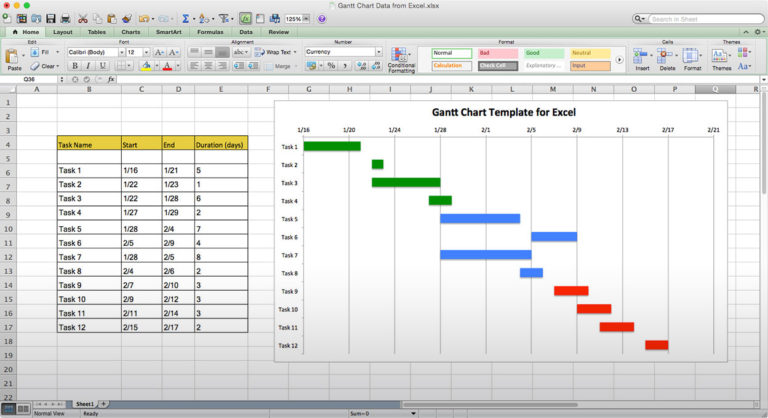
1. Task List/Data Input Sheet
This sheet is the foundation of the Gantt chart. It contains a table where you enter all the essential information for each task:
- Task Name: A concise description of the task.
- Start Date: The date the task is scheduled to begin.
- Duration: The estimated time required to complete the task (in days, weeks, or months).
- End Date (Calculated): This column automatically calculates the end date based on the start date and duration using a formula (e.g., =Start Date + Duration).
- Predecessors (Dependencies): This column specifies the task(s) that must be completed before the current task can begin. You would typically enter the row number(s) of the preceding tasks.
- % Complete: A field to track the progress of each task, usually represented as a percentage.
- Resource Allocation: Assign resources (e.g., team members, equipment) to each task.
- Priority: Indicate the importance of each task (e.g., High, Medium, Low).
2. Gantt Chart Visualization
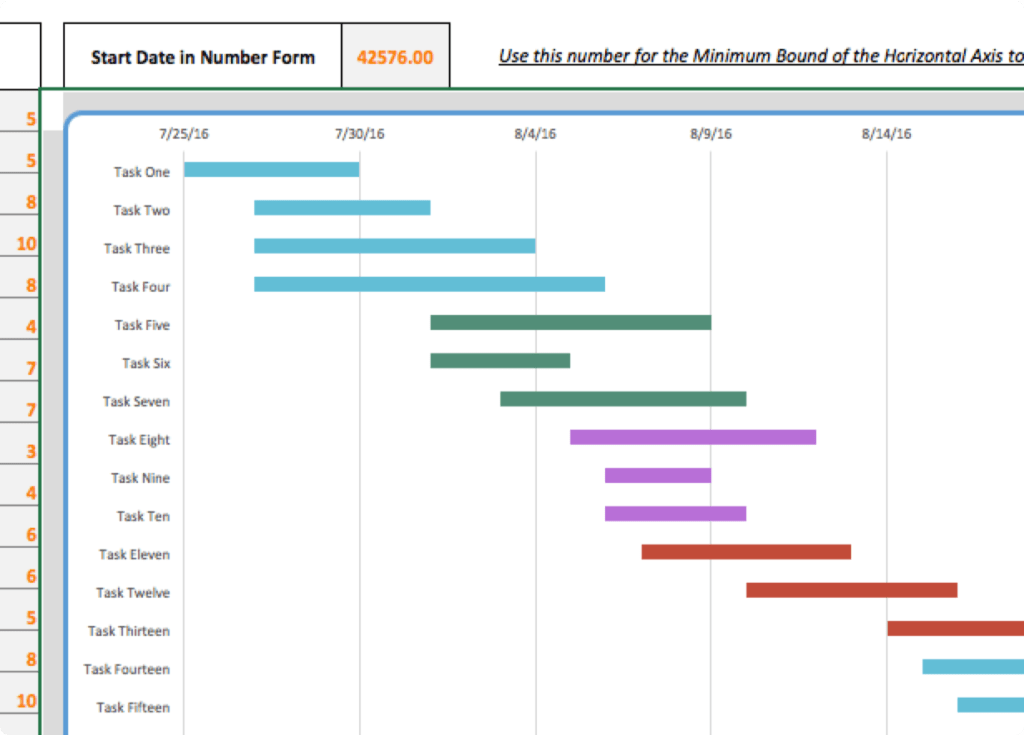
This is the visual representation of the project timeline. It uses conditional formatting and formulas to create a bar chart where:
- The horizontal axis represents the project timeline (dates).
- The vertical axis represents the list of tasks.
- Each task is represented by a horizontal bar, with the length of the bar proportional to the task’s duration.
- The position of the bar indicates the task’s start and end dates.
- Color-coding can be used to indicate task status (e.g., completed, in progress, delayed) or resource allocation.
- Progress is visually displayed on the bars representing % complete.
3. Macros for Automation
Macros are small programs written in VBA (Visual Basic for Applications) that automate repetitive tasks. In a Gantt chart template, macros can be used for:
- Dynamically Updating the Chart: When the task list is updated (e.g., start date changed, duration modified), a macro can automatically refresh the Gantt chart visualization. This avoids the need to manually adjust the chart every time there is a change.
- Highlighting Critical Paths: A macro can analyze task dependencies and identify the critical path (the sequence of tasks that directly impacts the project completion date). These tasks can be highlighted to draw attention to their importance.
- Generating Reports: Macros can be used to generate reports summarizing project progress, resource utilization, and potential delays.
- Adding New Tasks: A macro can automate the process of adding new tasks to the task list and updating the Gantt chart accordingly.
4. Formulas for Calculations
Excel formulas are essential for calculating derived values and driving the chart’s behavior. Common formulas include:
- Calculating End Dates: As mentioned earlier, `=Start Date + Duration` is used to determine the end date of a task.
- Calculating Task Dependencies: Formulas can be used to determine if a task can start based on the completion of its predecessors.
- Calculating % Complete: Formulas can be used to automatically update the % complete based on manual inputs or other criteria.
5. Conditional Formatting
Conditional formatting allows you to automatically change the appearance of cells based on their values or formulas. This is crucial for visually representing task status and highlighting important information on the Gantt chart.
- Highlighting Completed Tasks: Apply conditional formatting to change the color of the Gantt chart bar when the “% Complete” value is 100%.
- Highlighting Delayed Tasks: Apply conditional formatting to change the color of tasks that are behind schedule (e.g., based on comparing the current date to the task’s scheduled end date).
Benefits of Using an Automated Gantt Chart Template
Using an automated Gantt chart template offers several advantages:
- Increased Efficiency: Automation eliminates the need for manual chart creation and updates, saving significant time and effort.
- Improved Accuracy: Formulas and macros reduce the risk of errors in calculations and chart representations.
- Enhanced Visualization: The Gantt chart provides a clear and concise visual overview of the project timeline, making it easier to track progress and identify potential issues.
- Better Collaboration: The template can be easily shared with team members and stakeholders, facilitating collaboration and communication.
- Dynamic Updates: Changes to task information are automatically reflected in the Gantt chart, ensuring that everyone is working with the most up-to-date information.
Considerations When Choosing a Template
When selecting an automated Gantt chart template, consider the following factors:
- Complexity: Choose a template that matches the complexity of your project. A simple template may suffice for small projects, while larger projects may require a more feature-rich template.
- Customizability: Ensure that the template can be easily customized to meet your specific needs.
- Ease of Use: Select a template that is intuitive and easy to use. A complex template with a steep learning curve may negate the benefits of automation.
- Security: If the template contains macros, ensure that they are from a trusted source and that your Excel security settings are properly configured.
Conclusion
An automated Gantt chart Excel template with macros is a powerful tool for project management. By automating repetitive tasks and providing a clear visual representation of the project timeline, it can significantly improve efficiency, accuracy, and collaboration. When selecting a template, consider the complexity of your project and choose one that is customizable, easy to use, and secure. With the right template, you can streamline your project planning and tracking process, ultimately increasing your chances of success.
“`
 1919×941 gantt chart excel template automated macros eloquens from www.eloquens.com
  0 x 0 gantt chart excel template teamgantt from www.teamgantt.com
  1024×735 excel spreadsheet gantt chart template db excelcom from db-excel.com
  1334×620 gantt chart excel template gantt excel from ganttxl.com
  1022×556 excel gantt chart prioritization blog from appfluence.com
  1496×829 gantt chart maker excel template support from indzara.com
  768×418 microsoft office gantt chart template db excelcom from db-excel.com
  842×584 gantt charts excel templates tutorial video smartsheet from www.smartsheet.com
 Thank you for visiting Automated Gantt Chart Excel Template With Macros. There are a lot of beautiful templates out there, but it can be easy to feel like a lot of the best cost a ridiculous amount of money, require special design. And if at this time you are looking for information and ideas regarding the Automated Gantt Chart Excel Template With Macros then, you are in the perfect place. Get this Automated Gantt Chart Excel Template With Macros for free here. We hope this post Automated Gantt Chart Excel Template With Macros inspired you and help you what you are looking for.
Automated Gantt Chart Excel Template With Macros was posted in December 3, 2025 at 7:43 am. If you wanna have it as yours, please click the Pictures and you will go to click right mouse then Save Image As and Click Save and download the Automated Gantt Chart Excel Template With Macros Picture.. Don’t forget to share this picture with others via Facebook, Twitter, Pinterest or other social medias! we do hope you'll get inspired by SampleTemplates123... Thanks again! If you have any DMCA issues on this post, please contact us!
Related For Automated Gantt Chart Excel Template With Macros
