
MS Word Gantt Chart Template Weekly
Unlocking Weekly Project Success: The MS Word Gantt Chart Template
Project management doesn’t always require sophisticated software. Sometimes, a simple, accessible tool like a Microsoft Word Gantt chart template can be surprisingly effective, especially for projects with shorter timelines or those needing quick visual updates. The weekly view format, in particular, offers a granular perspective that’s ideal for tracking progress and managing tasks on a week-by-week basis.
Why Choose a Weekly Gantt Chart in Word?
While dedicated project management platforms offer advanced features, a Word-based Gantt chart, especially in a weekly format, has its own advantages:
- Accessibility: Most people already have Microsoft Word installed, eliminating the need for additional software purchases or subscriptions.
- Ease of Use: Word templates are generally user-friendly, requiring minimal training to get started. Modifying and updating the chart is straightforward.
- Customization: Word provides decent customization options for formatting, color-coding, and adding text annotations.
- Collaboration: Sharing a Word document is easy, allowing team members to view and contribute to the project plan. While it lacks real-time collaboration features, it still facilitates communication.
- Cost-Effective: Word templates are often free or available at a minimal cost, making them a budget-friendly option for small projects or teams.
- Quick Visual Overview: A weekly Gantt chart provides a clear, concise snapshot of project tasks scheduled for the upcoming week, the current week, and recent past weeks. This focused view helps in immediate task prioritization.
Deconstructing the Weekly Gantt Chart Template
A typical weekly Gantt chart template in Word will include these key elements:
- Task List: This is the central column listing all project tasks and subtasks. It should be organized logically, following the project’s workflow. Each task should have a clear and concise description.
- Start and End Dates: Columns indicating the planned start and end dates for each task. In a weekly view, these dates are crucial for visualizing task duration within the specific week.
- Duration (in Weeks): A calculated column showing the duration of each task in weeks. This gives a quick estimate of how long each task will take.
- Gantt Chart Area: The visual representation of the project schedule. This area typically uses horizontal bars to depict the duration of each task. The position of the bar along the time axis corresponds to the task’s start and end dates. In a weekly view, each column in the Gantt chart area represents a week.
- Weekly Time Scale: A header row displaying the dates for each week included in the chart. This provides the context for understanding the timeline.
- Dependencies (Optional): Some templates may include columns or visual cues to indicate dependencies between tasks, showing which tasks must be completed before others can begin.
- Assigned Resources (Optional): A column for assigning individuals or teams responsible for each task.
- Status (Optional): A column to track the progress of each task, often using status indicators like “Not Started,” “In Progress,” “Completed,” or “Blocked.” Color-coding these statuses can enhance the visual clarity.
Using the Weekly Gantt Chart Template Effectively
To maximize the benefits of a weekly Gantt chart in Word, consider these tips:
- Define Tasks Clearly: Break down large tasks into smaller, manageable subtasks. This provides greater control and visibility into the project’s progress.
- Accurate Time Estimates: Strive for realistic time estimates for each task. Overly optimistic or pessimistic estimates can skew the Gantt chart and lead to scheduling issues. Consult with team members for their input on time estimations.
- Regular Updates: The Gantt chart is only useful if it’s kept up-to-date. Regularly update task statuses, start and end dates, and any changes to the project plan. Weekly updates are essential for the weekly view.
- Color-Coding: Use color-coding strategically to highlight different aspects of the project, such as task status, assigned resources, or task priorities. This makes the Gantt chart easier to scan and understand.
- Dependencies Management: Clearly identify task dependencies to avoid bottlenecks and ensure that tasks are completed in the correct order.
- Communicate Changes: When changes are made to the Gantt chart, communicate them to all relevant team members. This ensures that everyone is aware of the updated project plan.
- Review and Adjust: Regularly review the Gantt chart to identify potential problems and make necessary adjustments to the project plan. This proactive approach can help prevent delays and keep the project on track. Consider weekly team meetings to review the Gantt chart and discuss progress.
- Utilize Conditional Formatting: Leverage Word’s conditional formatting features to automatically highlight overdue tasks or tasks nearing their deadlines.
Limitations to Consider
While a Word Gantt chart template is helpful, it’s important to be aware of its limitations:
- Lack of Automation: Updating the Gantt chart requires manual effort. Changes to one task may not automatically update related tasks or the overall project timeline.
- Limited Collaboration: Real-time collaboration is not possible. Sharing and merging changes from multiple team members can be cumbersome.
- No Resource Management: The template typically doesn’t offer sophisticated resource management features, such as tracking resource availability and allocation.
- Scalability Issues: For large, complex projects, a Word Gantt chart may become unwieldy and difficult to manage.
- Reporting Limitations: Generating detailed reports and analytics from a Word Gantt chart is limited.
Conclusion
The weekly MS Word Gantt chart template provides a practical and accessible solution for managing smaller projects or individual tasks. Its ease of use, customization options, and familiar interface make it a valuable tool for individuals and teams looking for a simple yet effective way to plan, track, and visualize their work on a week-by-week basis. While it may not be suitable for large or complex projects, it serves as a great starting point or a complementary tool for more advanced project management systems.
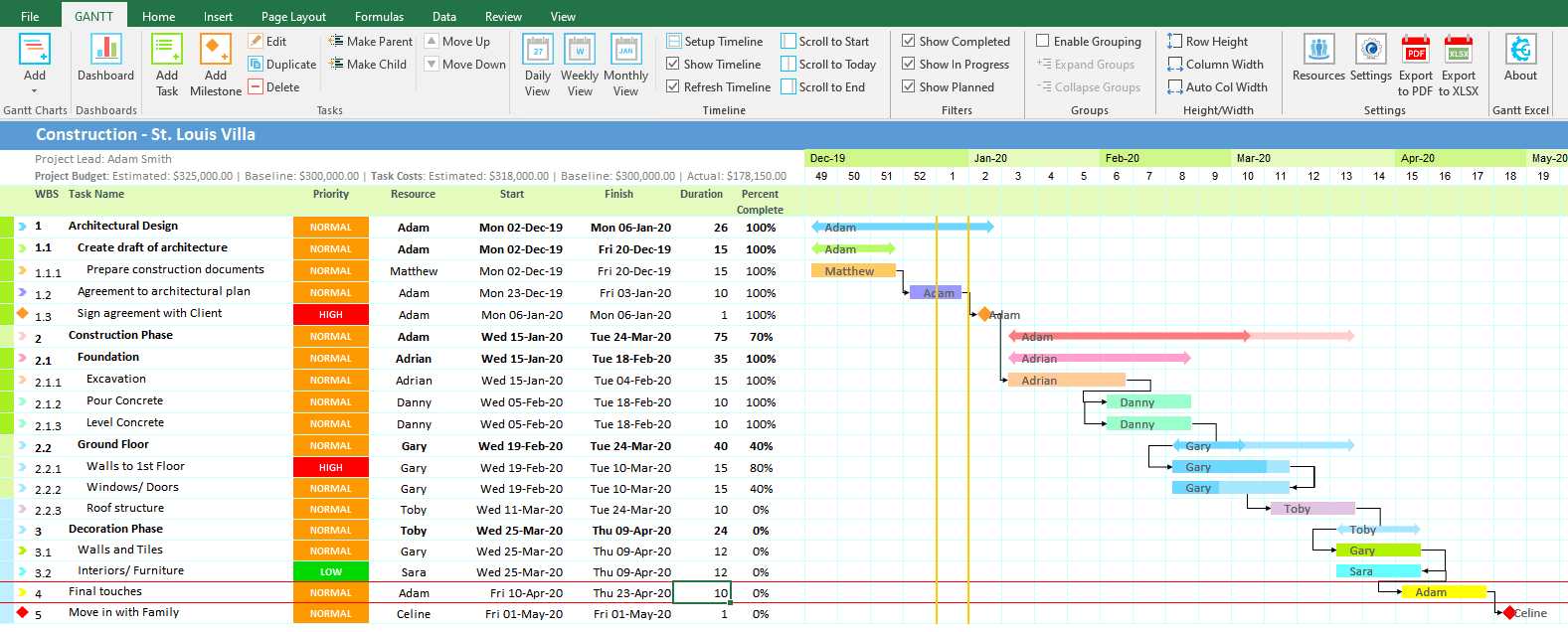 1577×636 weekly gantt chart gantt excel from www.ganttexcel.com
  1056×816 gantt chart weekly based template templates gantt chart from db-excel.com
  2339×1654 gantt chart template word markmeckler template design from markmeckler.net
 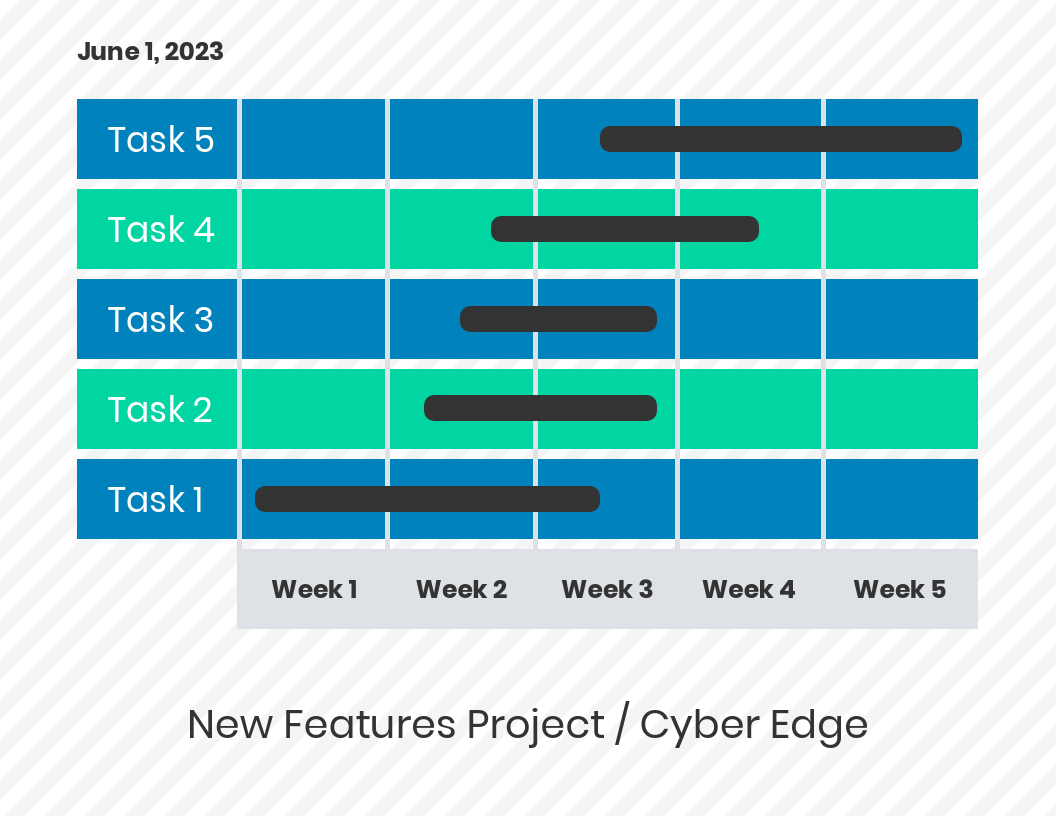 1056×816 gantt chart weekly template from lesboucans.com
  1232×884 gantt chart template word heritagechristiancollege from www.heritagechristiancollege.com
 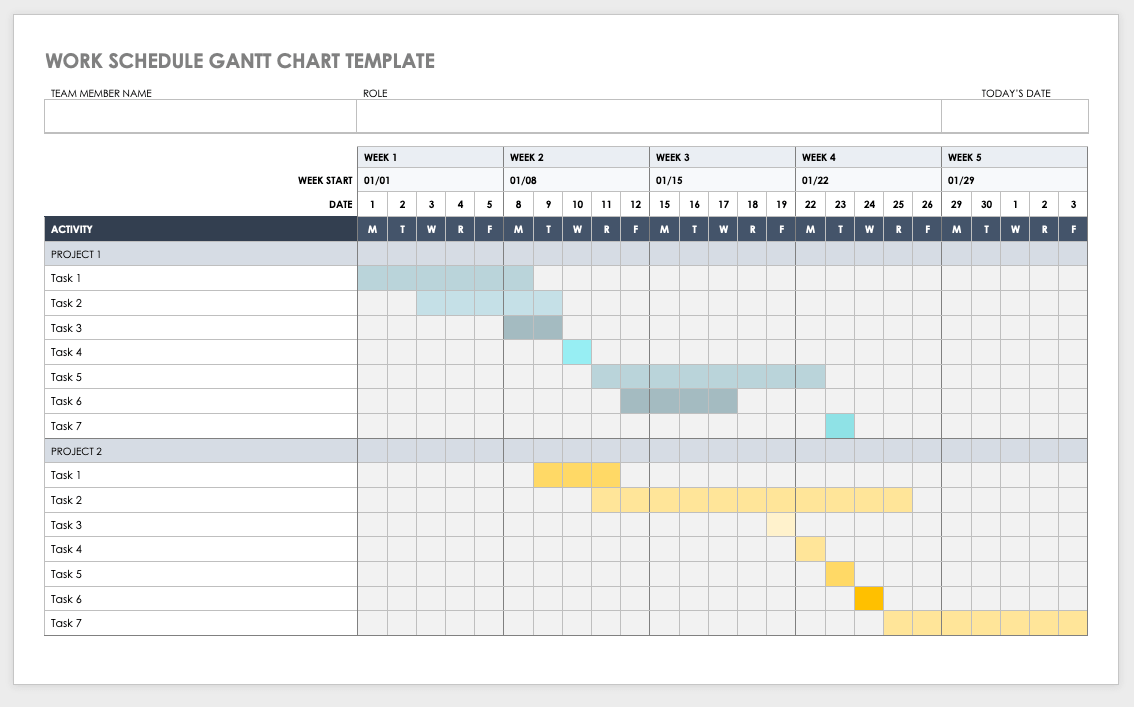 1134×707 gantt chart templates ms word smartshee from www.smartsheet.com
 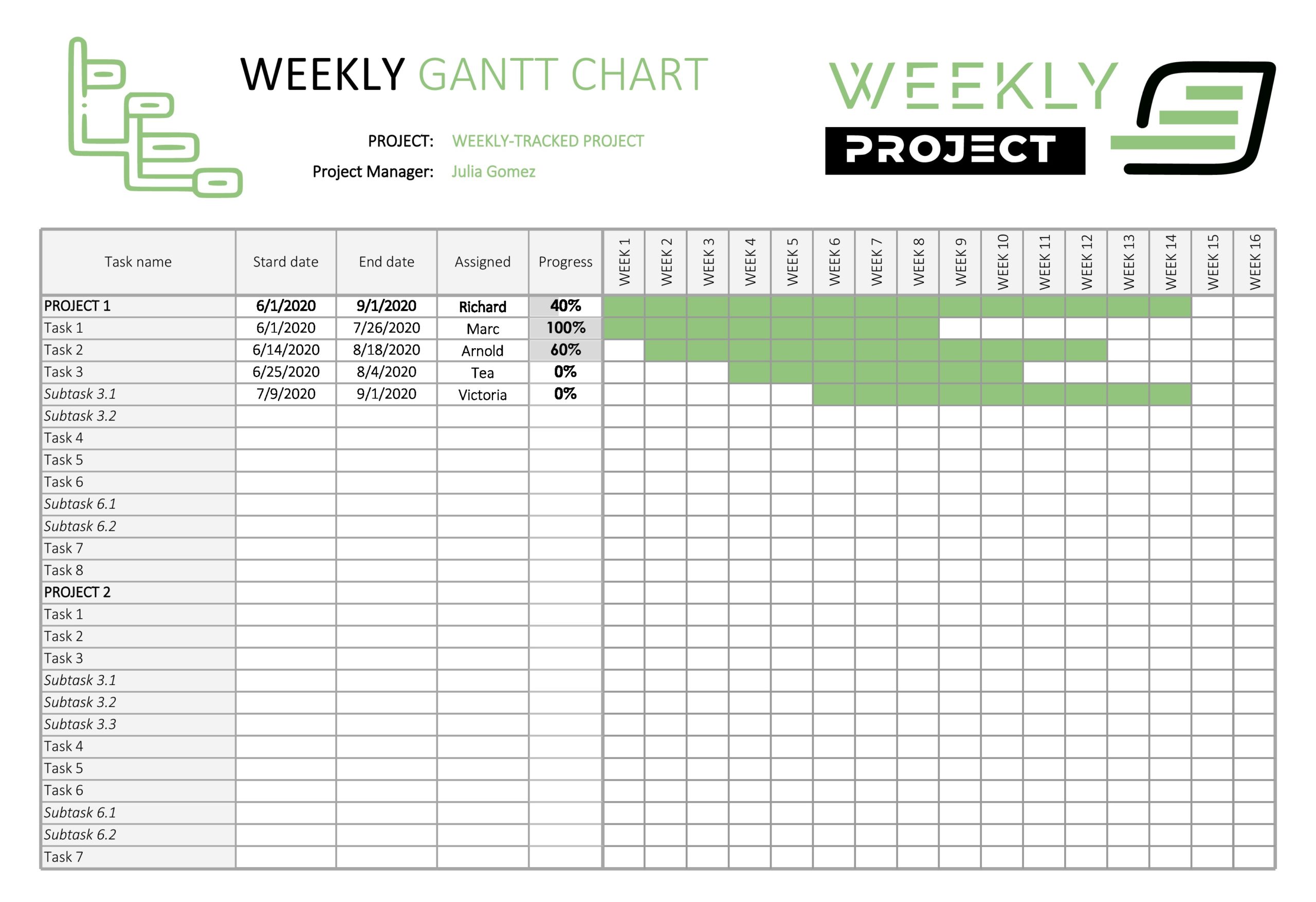 2560×1754 gantt chart templates excel powerpoint word templatelab from templatelab.com
  1179×704 create gantt chart microsoft word smartsheet from www.smartsheet.com
 Thank you for visiting MS Word Gantt Chart Template Weekly. There are a lot of beautiful templates out there, but it can be easy to feel like a lot of the best cost a ridiculous amount of money, require special design. And if at this time you are looking for information and ideas regarding the MS Word Gantt Chart Template Weekly then, you are in the perfect place. Get this MS Word Gantt Chart Template Weekly for free here. We hope this post MS Word Gantt Chart Template Weekly inspired you and help you what you are looking for.
MS Word Gantt Chart Template Weekly was posted in December 25, 2025 at 10:35 pm. If you wanna have it as yours, please click the Pictures and you will go to click right mouse then Save Image As and Click Save and download the MS Word Gantt Chart Template Weekly Picture.. Don’t forget to share this picture with others via Facebook, Twitter, Pinterest or other social medias! we do hope you'll get inspired by SampleTemplates123... Thanks again! If you have any DMCA issues on this post, please contact us!