
Editable Gantt Chart Excel Template For Teams
Editable Gantt Chart Excel Template for Teams
Project management thrives on clarity and collaboration. For teams working on complex projects, a well-structured Gantt chart is an indispensable tool. While sophisticated project management software exists, many teams find that a simple, editable Gantt chart Excel template provides a cost-effective and accessible solution. This document will explore the benefits, features, and best practices for using editable Gantt chart Excel templates in a team environment.
Why Use a Gantt Chart Excel Template for Teams?
Excel might seem like an unlikely choice for project management, but its ubiquity and ease of use make it a compelling option for many teams. Here’s why:
- Accessibility: Virtually everyone has access to Excel. This eliminates the need for teams to learn new, specialized software, reducing the learning curve and promoting immediate adoption.
- Cost-Effectiveness: Unlike paid project management software, Excel is often already part of a company’s existing software suite, minimizing additional costs. Free templates are readily available online, further reducing the financial burden.
- Customization: Excel provides unparalleled flexibility in customization. Teams can tailor the template to their specific needs, adding custom columns, formulas, and conditional formatting to match their workflow.
- Collaboration: While Excel isn’t inherently designed for real-time collaboration like some dedicated platforms, features like shared workbooks (especially in cloud-based versions like Microsoft 365) allow multiple team members to access and update the Gantt chart simultaneously. Commenting features also facilitate communication.
- Simplicity: For small to medium-sized projects, Excel offers a simpler alternative to complex project management software. Its visual representation of tasks, timelines, and dependencies makes it easy to understand and track progress.
Key Features of an Effective Editable Gantt Chart Excel Template
A good Gantt chart Excel template should include the following essential features:
- Task List: A clear and organized list of all tasks and subtasks required to complete the project. Each task should have a unique identifier (e.g., Task ID).
- Start and End Dates: Columns for defining the start and end dates for each task. These dates are crucial for generating the Gantt chart visualization.
- Duration: A calculated field that automatically determines the duration of each task based on the start and end dates. This simplifies timeline management.
- Dependencies: A column to specify the dependencies between tasks (e.g., Task B cannot start until Task A is completed). This allows for sequential task planning and critical path identification.
- Assignees: A column to assign each task to a specific team member. This ensures accountability and clear ownership.
- Status: A dropdown menu or similar mechanism to track the progress of each task (e.g., “Not Started,” “In Progress,” “Completed,” “Delayed”). Conditional formatting can be used to visually highlight task status.
- Percentage Complete: A field to indicate the percentage of work completed for each task. This provides a more granular view of progress than a simple status indicator.
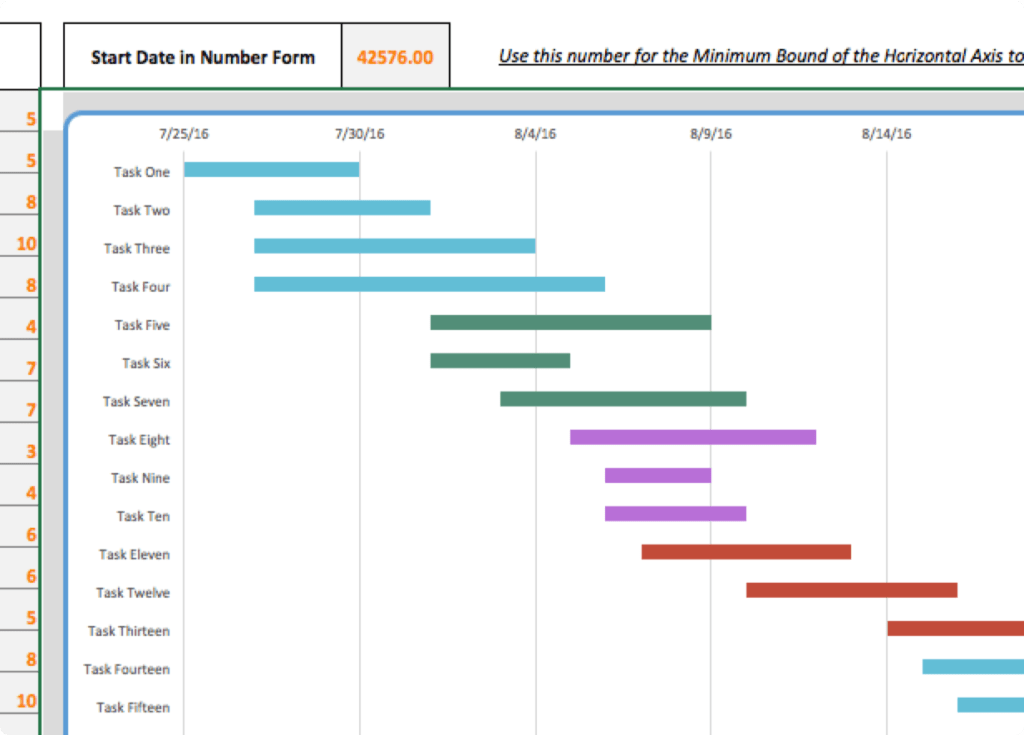
- Gantt Chart Visualization: The core of the template. This is a visual representation of the project timeline, with bars representing each task’s duration and position indicating its start and end dates. Excel’s conditional formatting and charting capabilities are essential here.
- Milestones: Specific points in the project that mark significant progress or achievements. Milestones should be clearly identified in the task list and visually represented in the Gantt chart.
- Resources: A section to allocate resources (e.g., budget, equipment) to specific tasks, allowing for resource management and cost tracking.
- Comments/Notes: A column or area for adding notes or comments about each task, facilitating communication and providing context.
Tips for Using an Editable Gantt Chart Excel Template with Your Team
To maximize the effectiveness of a Gantt chart Excel template in a team setting, consider these best practices:
- Choose the Right Template: Start with a template that closely matches your project’s complexity and needs. Many free and paid templates are available online. Evaluate them carefully before selecting one.
- Customize the Template: Tailor the template to your team’s specific workflow and terminology. Add custom columns, change formatting, and adjust formulas as needed. Don’t be afraid to modify it significantly to fit your requirements.
- Establish Clear Guidelines: Define clear rules for updating the Gantt chart. Specify who is responsible for updating which fields and how often. This ensures data accuracy and consistency.
- Regularly Update the Chart: The Gantt chart is only useful if it reflects the current status of the project. Encourage team members to update their assigned tasks regularly. Schedule regular project status meetings to review the chart and discuss any issues.
- Use Conditional Formatting: Leverage conditional formatting to visually highlight important information, such as overdue tasks, tasks nearing their deadline, or tasks assigned to a specific team member. This makes the Gantt chart more easily scannable and informative.
- Communicate Effectively: Use the Gantt chart as a communication tool to keep the team informed of project progress, potential roadblocks, and upcoming deadlines. Share the chart regularly and encourage team members to provide feedback.
- Consider Cloud-Based Solutions: If real-time collaboration is crucial, use a cloud-based version of Excel (e.g., Microsoft 365) to enable multiple team members to work on the Gantt chart simultaneously. Utilize features like comments and version history for enhanced collaboration.
- Train Your Team: Provide basic training on how to use the Gantt chart Excel template effectively. This ensures that all team members understand the chart’s purpose and how to contribute to its upkeep.
- Backup Your Data: Regularly back up your Gantt chart Excel file to prevent data loss. Consider using cloud storage or version control systems for added security.
Limitations of Excel Gantt Charts
While Gantt chart Excel templates offer significant advantages, they also have limitations compared to dedicated project management software:
- Scalability: Excel may become unwieldy for very large or complex projects with hundreds of tasks and dependencies.
- Real-time Collaboration: Although improved with cloud versions, Excel’s real-time collaboration capabilities are not as robust as those offered by dedicated project management platforms.
- Advanced Features: Excel lacks advanced features like resource allocation, critical path analysis, and reporting capabilities found in specialized project management tools.
- Automation: Many tasks require manual updating, which can be time-consuming and prone to errors.
Conclusion
An editable Gantt chart Excel template is a valuable tool for teams seeking a simple, cost-effective, and accessible way to manage projects. By understanding the features, benefits, and limitations of using Excel for project management, teams can leverage this tool to improve collaboration, track progress, and achieve their project goals effectively. Remember to customize the template to your team’s specific needs, establish clear guidelines for its use, and prioritize regular updates and communication to ensure its continued effectiveness.
 1024×768 gantt chart excel template db excelcom from db-excel.com
  1384×1052 gantt chart excel template teamgantt excel from db-excel.com
  440×570 simple team gantt chart template excel from www.template.net
  1652×1277 excel gantt chart template ms excel gantt chart template from db-excel.com
  1484×1082 gantt chart excel template teamgantt gantt from db-excel.com
  0 x 0 gantt chart excel template teamgantt from www.teamgantt.com
  1024×735 excel spreadsheet gantt chart template db excelcom from db-excel.com
  0 x 0 create gantt chart excel template teamgantt from www.teamgantt.com
  1248×680 gantt chart template excel spreadshee gantt from db-excel.com
  1243×706 ms excel gantt chart template excel templates from www.exceltemplate123.us
  1162×1519 microsoft excel gantt chart template excel templates excel templates from www.exceltemplate123.us
  1366×768 microsoft office gantt chart template db excelcom from db-excel.com
  1038×545 gantt chart excel template project management templates from www.techno-pm.com
  728×416 gantt chart microsoft excel template schedule png clipart area bar from imgbin.com
  1650×1275 microsoft office gantt chart template spreadshee from db-excel.com
 Thank you for visiting Editable Gantt Chart Excel Template For Teams. There are a lot of beautiful templates out there, but it can be easy to feel like a lot of the best cost a ridiculous amount of money, require special design. And if at this time you are looking for information and ideas regarding the Editable Gantt Chart Excel Template For Teams then, you are in the perfect place. Get this Editable Gantt Chart Excel Template For Teams for free here. We hope this post Editable Gantt Chart Excel Template For Teams inspired you and help you what you are looking for.
Editable Gantt Chart Excel Template For Teams was posted in February 23, 2026 at 7:47 am. If you wanna have it as yours, please click the Pictures and you will go to click right mouse then Save Image As and Click Save and download the Editable Gantt Chart Excel Template For Teams Picture.. Don’t forget to share this picture with others via Facebook, Twitter, Pinterest or other social medias! we do hope you'll get inspired by SampleTemplates123... Thanks again! If you have any DMCA issues on this post, please contact us!