
MS Word Gantt Chart Template Monthly
Harnessing the Power of Monthly Gantt Charts in MS Word
Project management often feels like juggling flaming torches while riding a unicycle. To bring order to the chaos, tools like Gantt charts are indispensable. While specialized project management software offers robust features, sometimes a quick and accessible solution is needed. That’s where the MS Word Gantt chart template, specifically designed for a monthly view, shines. This article explores the benefits, customization options, and best practices for effectively using such a template.
Why Choose a Monthly Gantt Chart in Word?
Several advantages make the monthly Gantt chart in Word a pragmatic choice:
- Accessibility: Most users already have MS Word installed, eliminating the need for additional software purchases or downloads.
- Ease of Use: Word is familiar and intuitive, reducing the learning curve associated with specialized project management tools. The basic drag-and-drop functionality often found in these templates makes initial setup simple.
- Cost-Effectiveness: Avoid costly subscription fees associated with project management software. The templates are often free or included with a Word license.
- Collaboration: Word documents are easily shared and edited collaboratively. Track changes and comments facilitate team communication.
- Presentable Output: Word offers a range of formatting options, allowing you to create visually appealing and professional-looking charts for presentations or reports.
Understanding the Monthly Gantt Chart Template
A typical monthly Gantt chart template in Word displays project tasks along the vertical axis and months along the horizontal axis. Bars are drawn to represent the duration of each task, visually illustrating the project timeline. Key components typically include:
- Task List: A column containing a breakdown of all project activities.
- Start Date: The beginning date for each task.
- End Date: The completion date for each task.
- Duration: The length of time required to complete a task, usually expressed in weeks or days.
- Timeline: The graphical representation of task durations across a monthly timeline.
- Dependencies (Optional): Lines or arrows indicating relationships between tasks, where one task must be completed before another can begin.
- Milestones (Optional): Significant events or checkpoints within the project, marked on the chart.
- Progress Indicators (Optional): Visual cues to represent the percentage of completion for each task.
Customizing Your Monthly Gantt Chart in Word
The real power of a Word-based Gantt chart lies in its customization capabilities. Here’s how to tailor the template to your specific project needs:
- Adding/Deleting Tasks: Insert or remove rows in the table to reflect the actual number of tasks in your project.
- Adjusting Dates: Modify the start and end dates to match your project schedule. The chart should automatically update the bar lengths.
- Color-Coding: Use color to differentiate task categories, highlight critical tasks, or indicate team member assignments. Word’s formatting tools provide ample options for customizing the appearance of the chart.
- Adding Dependencies: Manually draw lines or arrows to connect dependent tasks. While not as sophisticated as automated dependency management in dedicated software, this provides a basic visual representation of task relationships.
- Incorporating Milestones: Add visual markers (shapes, symbols) to denote important milestones, such as project phases or key deliverables.
- Displaying Progress: Add a “Progress” column and use data bars or conditional formatting to visually represent the completion percentage for each task.
- Modifying the Timeline Scale: While primarily monthly, you can adjust the width of the columns to represent weeks or even individual days within a specific month, allowing for more granular detail when needed. Be mindful of readability as you increase the level of detail.
- Adding Resources: Include a column for assigned resources (team members) responsible for each task. This improves accountability and allows for easier tracking of individual workloads.
- Adding Notes/Comments: Use Word’s comment feature to add notes or updates related to specific tasks, improving communication and collaboration.
Best Practices for Using a Monthly Gantt Chart in Word
To maximize the effectiveness of your monthly Gantt chart, consider these best practices:
- Keep it Simple: Avoid overcrowding the chart with too much information. Focus on the essential tasks and milestones.
- Regularly Update: Update the chart frequently to reflect the current project status. Stale data renders the chart useless.
- Communicate Effectively: Share the chart with your team and stakeholders, and use it as a basis for discussions about project progress.
- Use Clear Labels: Ensure that all tasks, milestones, and dependencies are clearly labeled and easy to understand.
- Choose the Right Template: Explore different templates to find one that best suits your project’s complexity and visual preferences. Microsoft offers various templates online.
- Consider Alternatives for Complex Projects: While a Word Gantt chart is suitable for smaller, less complex projects, consider using dedicated project management software for larger, more intricate initiatives.
- Back It Up: Regularly save your Word document to prevent data loss. Consider using cloud storage for version control and backup.
Conclusion
A monthly Gantt chart template in MS Word provides a practical and accessible solution for visualizing and managing projects. Its ease of use, customization options, and cost-effectiveness make it an excellent choice for smaller teams and projects. By following the best practices outlined above, you can leverage the power of this simple tool to improve project planning, execution, and communication, ultimately increasing your chances of project success.
 2339×1654 monthly gantt chart template microsoft word excel templatenet from www.template.net
  2339×1654 gantt chart template word markmeckler template design from markmeckler.net
 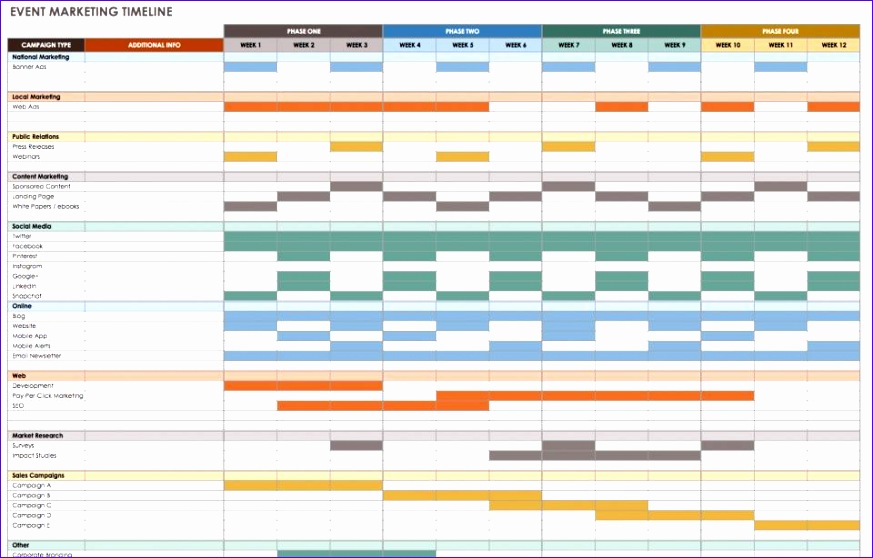 873×558 gantt chart template excel monthly excel templates from exceltemplate77.blogspot.com
  1279×720 monthly gantt chart excel template from lesboucans.com
  1056×816 gantt chart template word simple excel gantt chart template from www.heritagechristiancollege.com
  2500×1591 monthly gantt chart template from lesboucans.com
  1650×1275 gantt chart template word heritagechristiancollege from www.heritagechristiancollege.com
  1366×901 gantt chart templates ms word smartshee from www.smartsheet.com
 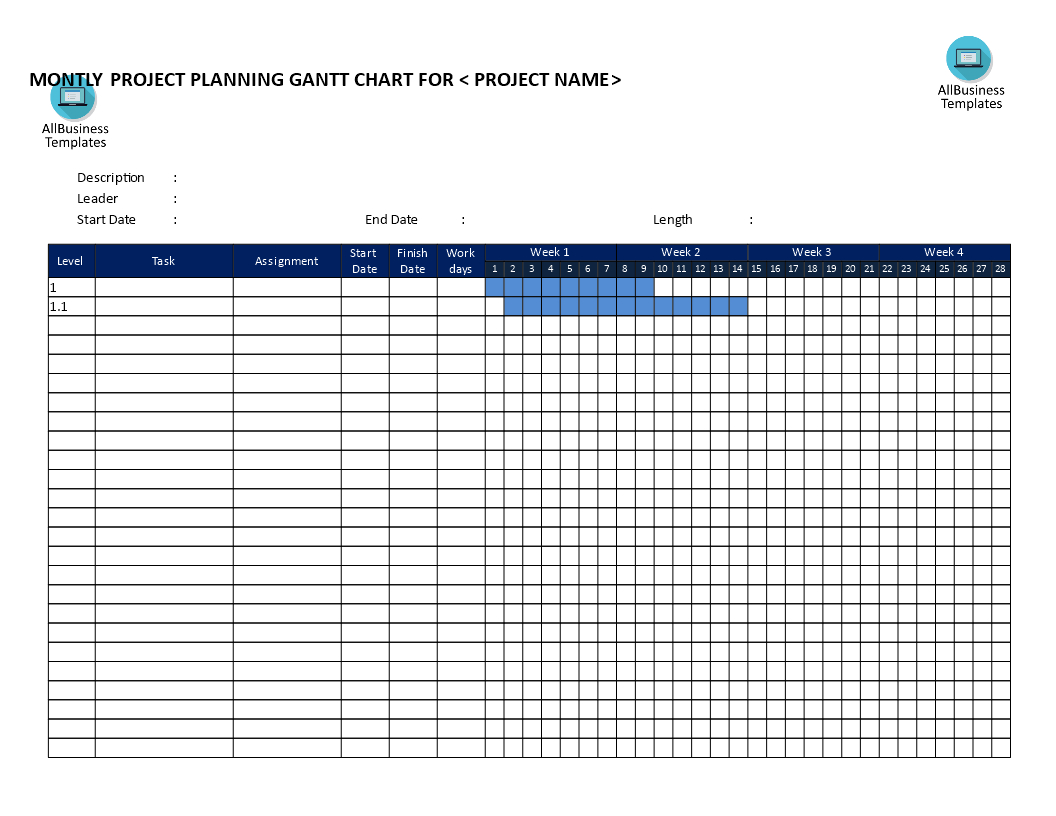 1056×816 gantt chart template microsoft word db excelcom from db-excel.com
  1200×627 monthly gantt chart templates smartsheet from www.smartsheet.com
  1179×704 create gantt chart microsoft word smartsheet from www.smartsheet.com
 Thank you for visiting MS Word Gantt Chart Template Monthly. There are a lot of beautiful templates out there, but it can be easy to feel like a lot of the best cost a ridiculous amount of money, require special design. And if at this time you are looking for information and ideas regarding the MS Word Gantt Chart Template Monthly then, you are in the perfect place. Get this MS Word Gantt Chart Template Monthly for free here. We hope this post MS Word Gantt Chart Template Monthly inspired you and help you what you are looking for.
MS Word Gantt Chart Template Monthly was posted in November 15, 2025 at 7:34 am. If you wanna have it as yours, please click the Pictures and you will go to click right mouse then Save Image As and Click Save and download the MS Word Gantt Chart Template Monthly Picture.. Don’t forget to share this picture with others via Facebook, Twitter, Pinterest or other social medias! we do hope you'll get inspired by SampleTemplates123... Thanks again! If you have any DMCA issues on this post, please contact us!