
PowerPoint Gantt Chart Template Weekly
PowerPoint Gantt Chart Template: Weekly View
A Gantt chart is a powerful visual tool for project management, allowing you to plan, schedule, and track tasks effectively. While specialized project management software offers advanced Gantt chart capabilities, a PowerPoint Gantt chart template, especially one designed for a weekly view, provides a readily accessible and customizable solution for smaller projects or quick overviews. Let’s delve into the advantages, features, and practical applications of using a weekly PowerPoint Gantt chart template.
The Appeal of a Weekly Gantt Chart in PowerPoint
Why choose a weekly view over other timeframes like monthly or quarterly? The weekly Gantt chart offers a sweet spot between granularity and manageability. It provides sufficient detail to track short-term progress and identify potential delays within a specific week, without overwhelming you with the minute details that daily views might present. This makes it ideal for:
- Short-to-Medium Term Projects: If your project spans a few weeks to a few months, a weekly view strikes the right balance.
- Agile Teams: Agile methodologies often operate in sprints or iterations that are typically one to four weeks long. A weekly Gantt chart aligns perfectly with these shorter development cycles.
- Tracking Milestones: While showing the details of individual tasks, it still allows you to easily see when important milestones are scheduled to be reached each week.
- Quick Progress Updates: The concise nature of a weekly chart makes it easy to quickly assess progress and identify areas needing attention during weekly team meetings.
Key Features of a Well-Designed Weekly PowerPoint Gantt Chart Template
A good weekly Gantt chart template in PowerPoint should include the following elements:
- Clear Timeline: The horizontal axis should represent time, divided into weeks. Each week should be clearly labeled with dates or week numbers.
- Task List: The vertical axis should list the tasks required to complete the project. These tasks should be organized logically, perhaps grouped by project phase or deliverable.
- Task Bars: Horizontal bars represent each task, with the length of the bar indicating the task’s duration. The bar’s position on the timeline shows its start and end dates.
- Dependencies: Arrows or lines connect tasks to illustrate dependencies. This shows which tasks must be completed before others can begin.
- Milestones: Distinct markers (e.g., diamonds, stars) should highlight key milestones within the project timeline.
- Progress Tracking: A visual representation of task completion, typically shown by filling in the task bar to the percentage complete. This gives a quick visual cue of project status.
- Assignee Information: Include a column or section to assign each task to a specific team member.
- Customization Options: The template should be easily customizable, allowing you to change colors, fonts, and add or remove tasks as needed.
How to Use a Weekly PowerPoint Gantt Chart Template
Here’s a step-by-step guide to using a weekly Gantt chart template in PowerPoint:
- Choose a Template: Find a template that suits your needs. Many free and premium templates are available online. Look for one that is specifically designed for a weekly view and is easily editable.
- Populate Task List: Replace the sample tasks with your project’s actual tasks. Break down the project into smaller, manageable tasks.
- Define Task Durations: Estimate how long each task will take to complete, expressed in weeks or partial weeks.
- Set Start and End Dates: Determine the start and end dates for each task. This will position the task bars correctly on the timeline.
- Establish Dependencies: Identify any dependencies between tasks and connect them using arrows or lines.
- Assign Resources: Assign each task to a team member responsible for its completion.
- Mark Milestones: Identify and mark key milestones within the project timeline.
- Track Progress: Regularly update the progress of each task by adjusting the fill percentage of the task bars.
- Customize the Chart: Customize the chart to fit your branding and preferences. Change colors, fonts, and add your company logo.
Advantages of Using a PowerPoint Gantt Chart Template
- Accessibility: PowerPoint is widely available and familiar to most users, eliminating the need for specialized software training.
- Ease of Use: PowerPoint’s intuitive interface makes it easy to create and modify Gantt charts.
- Collaboration: PowerPoint files are easily shared and collaborated on, allowing multiple team members to contribute to the project plan.
- Cost-Effective: Using a PowerPoint template is often a more cost-effective solution than purchasing dedicated project management software, especially for smaller projects.
- Visual Appeal: PowerPoint offers extensive formatting options to create visually appealing and professional-looking Gantt charts.
- Presentation-Ready: Gantt charts created in PowerPoint are easily integrated into presentations for project updates and stakeholder communication.
Limitations to Consider
While convenient, PowerPoint Gantt charts also have limitations:
- Limited Functionality: Compared to dedicated project management software, PowerPoint lacks advanced features such as automatic task scheduling, critical path analysis, and resource leveling.
- Manual Updates: Progress tracking and updates are largely manual, which can be time-consuming and prone to errors.
- Scalability Issues: For large and complex projects with numerous tasks and dependencies, a PowerPoint Gantt chart can become unwieldy and difficult to manage.
Conclusion
A weekly PowerPoint Gantt chart template offers a practical and accessible solution for visualizing and managing short-to-medium term projects. Its ease of use, collaboration features, and visual appeal make it a valuable tool for project planning, tracking, and communication. While it may not have the advanced functionality of dedicated project management software, its simplicity and widespread availability make it a compelling option for teams looking for a quick and efficient way to track their progress on a weekly basis.
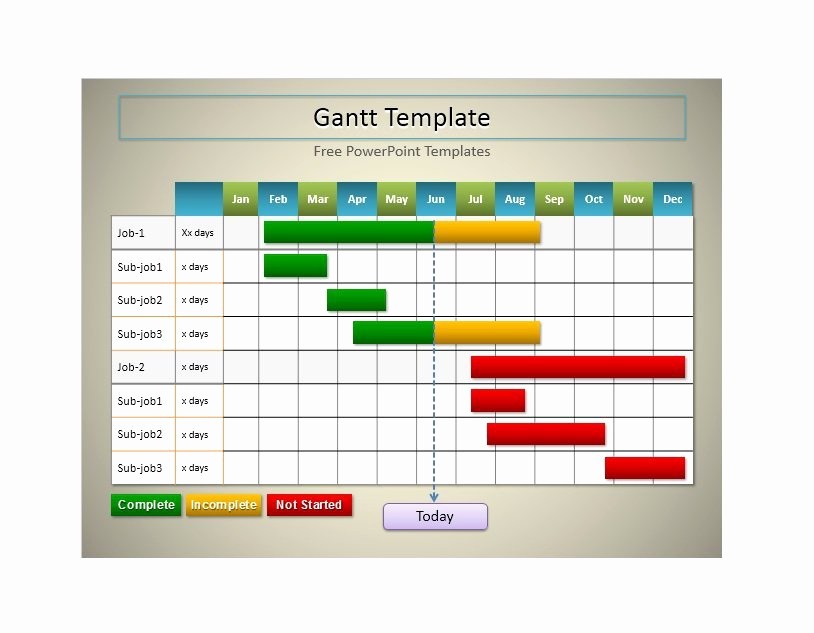 814×633 gantt chart powerpoint template elegant gantt chart from ufreeonline.net
 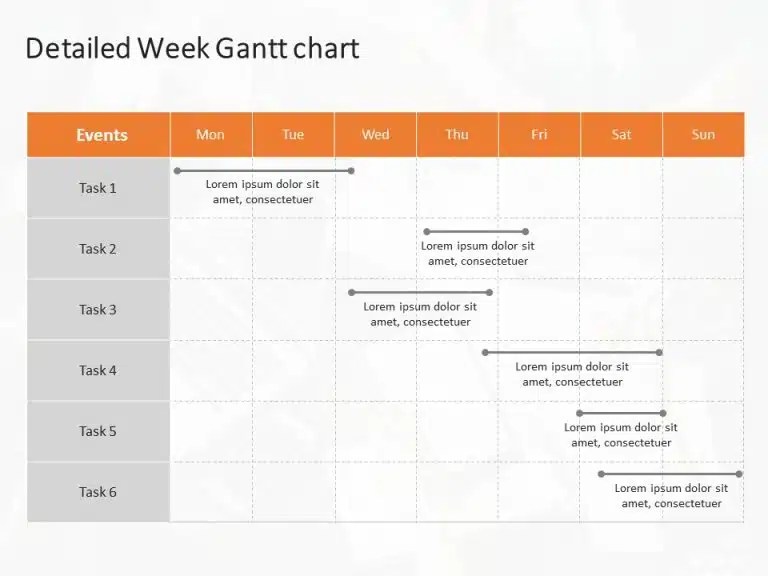 768×576 orange gray weekly task gantt chart powerpoint template from slideuplift.com
  2560×1779 gantt chart templates excel templatearchive from templatearchive.com
  768×576 gantt chart project management from studylib.net
768×576 gantt chart project management from studylib.net  1280×720 gantt charts powerpoint templates powerslides from www.powerslides.com
 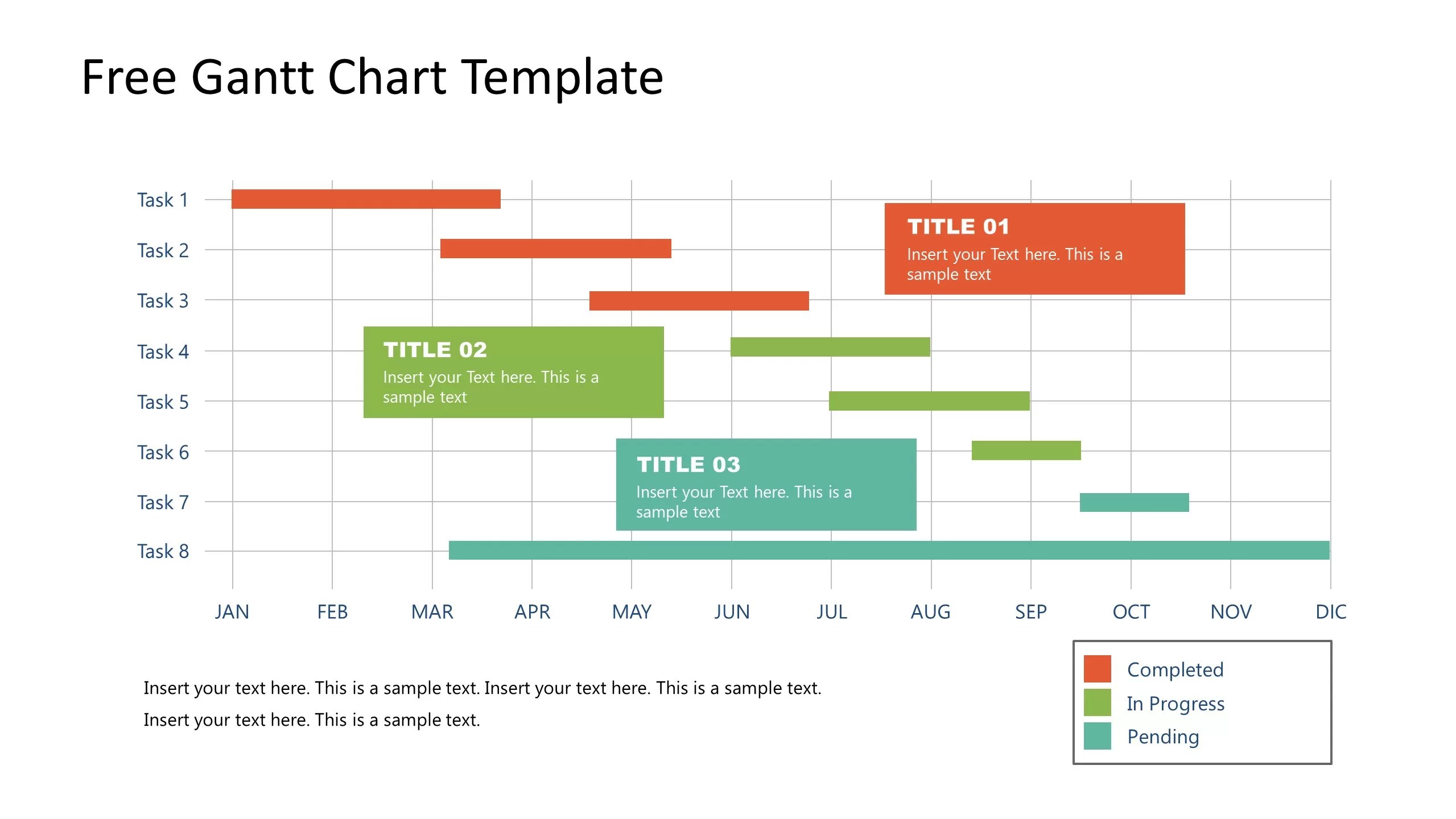 2559×1440 gantt chart powerpoint templates slidemodel from slidemodel.com
  1471×746 monthly gantt chart template powerpoint template from enterstarcrypticcity.blogspot.com
 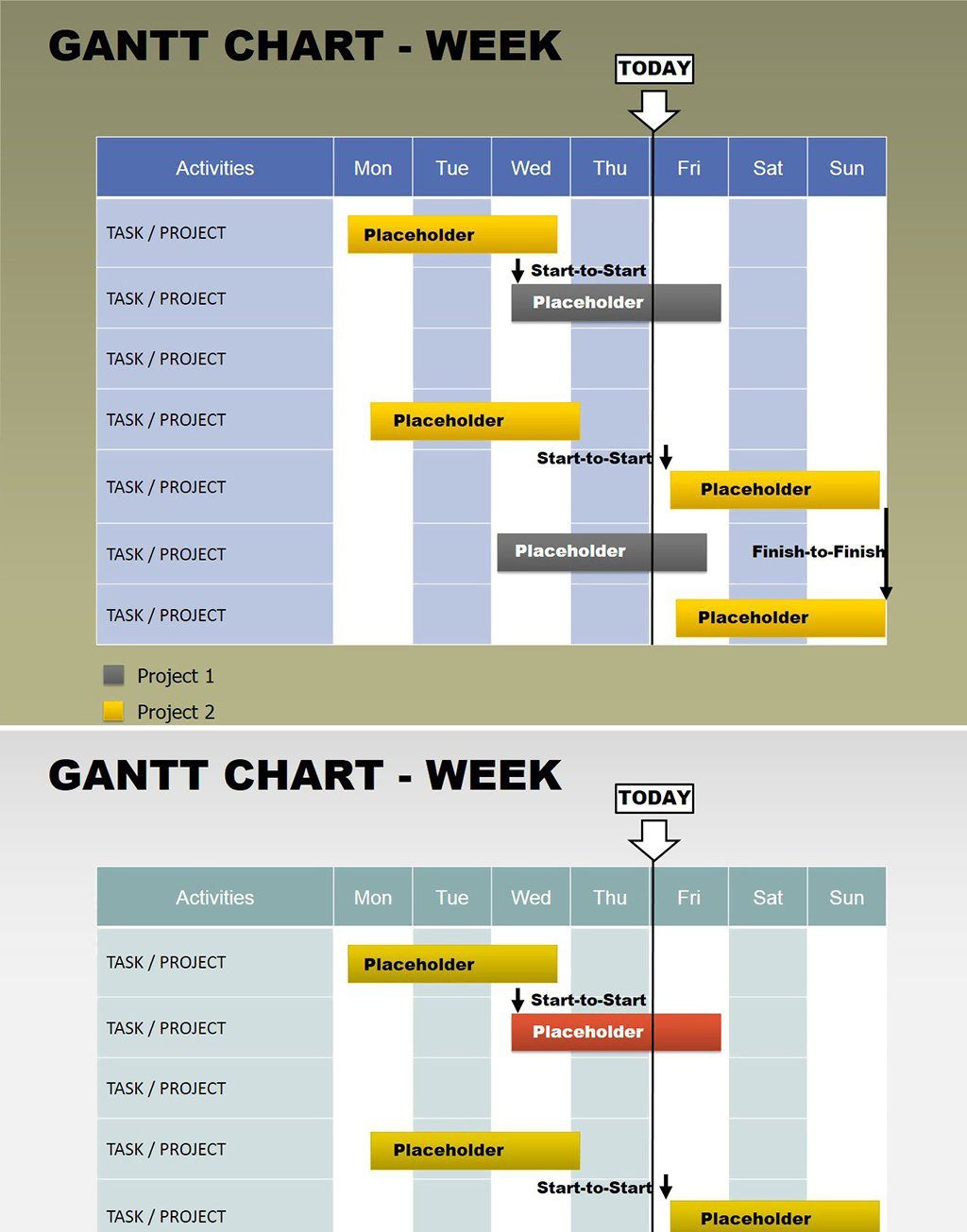 1365×2054 gantt week powerpoint charts from imaginelayout.com
  1226×690 powerpoint gantt chart templates smartsheet from www.smartsheet.com
 Thank you for visiting PowerPoint Gantt Chart Template Weekly. There are a lot of beautiful templates out there, but it can be easy to feel like a lot of the best cost a ridiculous amount of money, require special design. And if at this time you are looking for information and ideas regarding the PowerPoint Gantt Chart Template Weekly then, you are in the perfect place. Get this PowerPoint Gantt Chart Template Weekly for free here. We hope this post PowerPoint Gantt Chart Template Weekly inspired you and help you what you are looking for.
PowerPoint Gantt Chart Template Weekly was posted in December 27, 2025 at 10:34 am. If you wanna have it as yours, please click the Pictures and you will go to click right mouse then Save Image As and Click Save and download the PowerPoint Gantt Chart Template Weekly Picture.. Don’t forget to share this picture with others via Facebook, Twitter, Pinterest or other social medias! we do hope you'll get inspired by SampleTemplates123... Thanks again! If you have any DMCA issues on this post, please contact us!